← Back
Vampire: The Masquerade - Bloodlines cover art
CrossOver

How to play Vampire: The Masquerade - Bloodlines on Mac

RPG · 2004

Plays smoothly through CrossOver on Apple Silicon.

Overall rating: Tricky to run on Mac · 0% of 2 players say it runs well

Your setup
Detect your Mac to see whether Vampire: The Masquerade - Bloodlines will run.

Plays smoothly through CrossOver on Apple Silicon.

How to run Vampire: The Masquerade - Bloodlines on your Mac in 2026

Best path: Parallels

Runs in a full Windows 11 ARM virtual machine — the universal fallback for Windows games. Demanding 3D titles may need lower settings.

  • Heads up on Parallels: Requires a Parallels licence and a Windows 11 ARM install
MethodQualityDifficultyCost
ParallelsPickExcellentMedium$99/yrGet it ↗
CrossOverGoodMedium$74 / $39/yrGet it ↗

Vampire: The Masquerade - Bloodlines

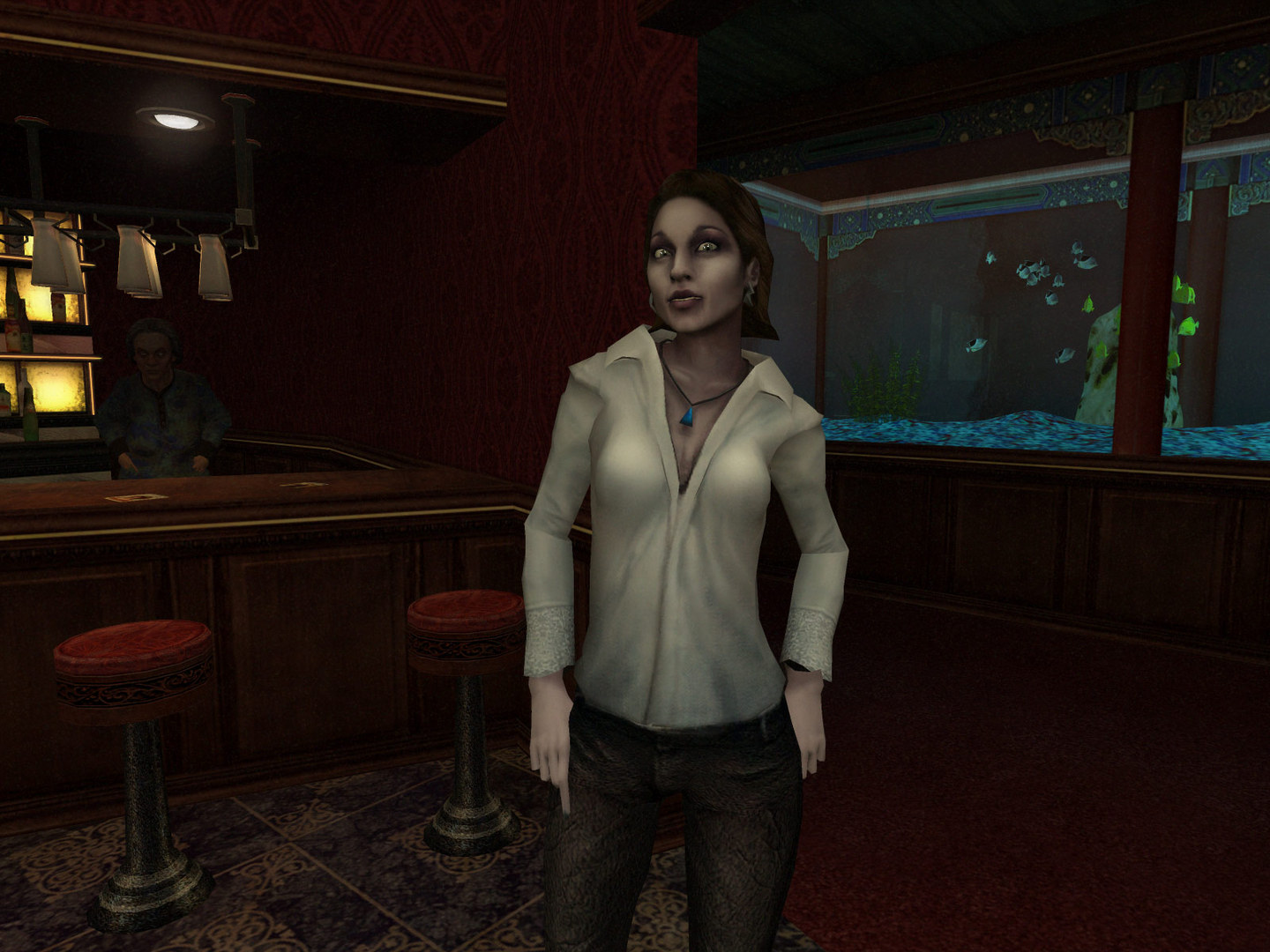
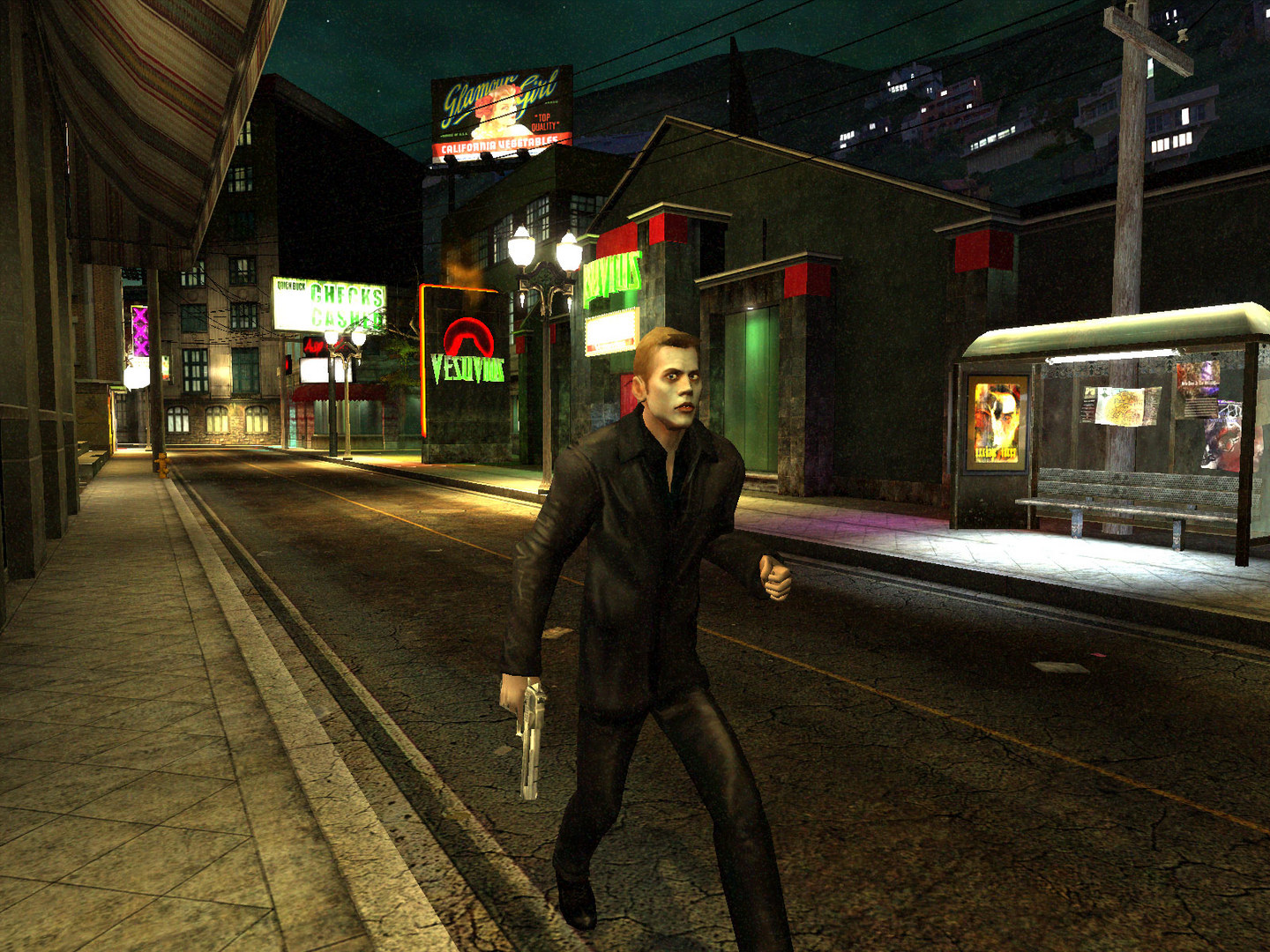
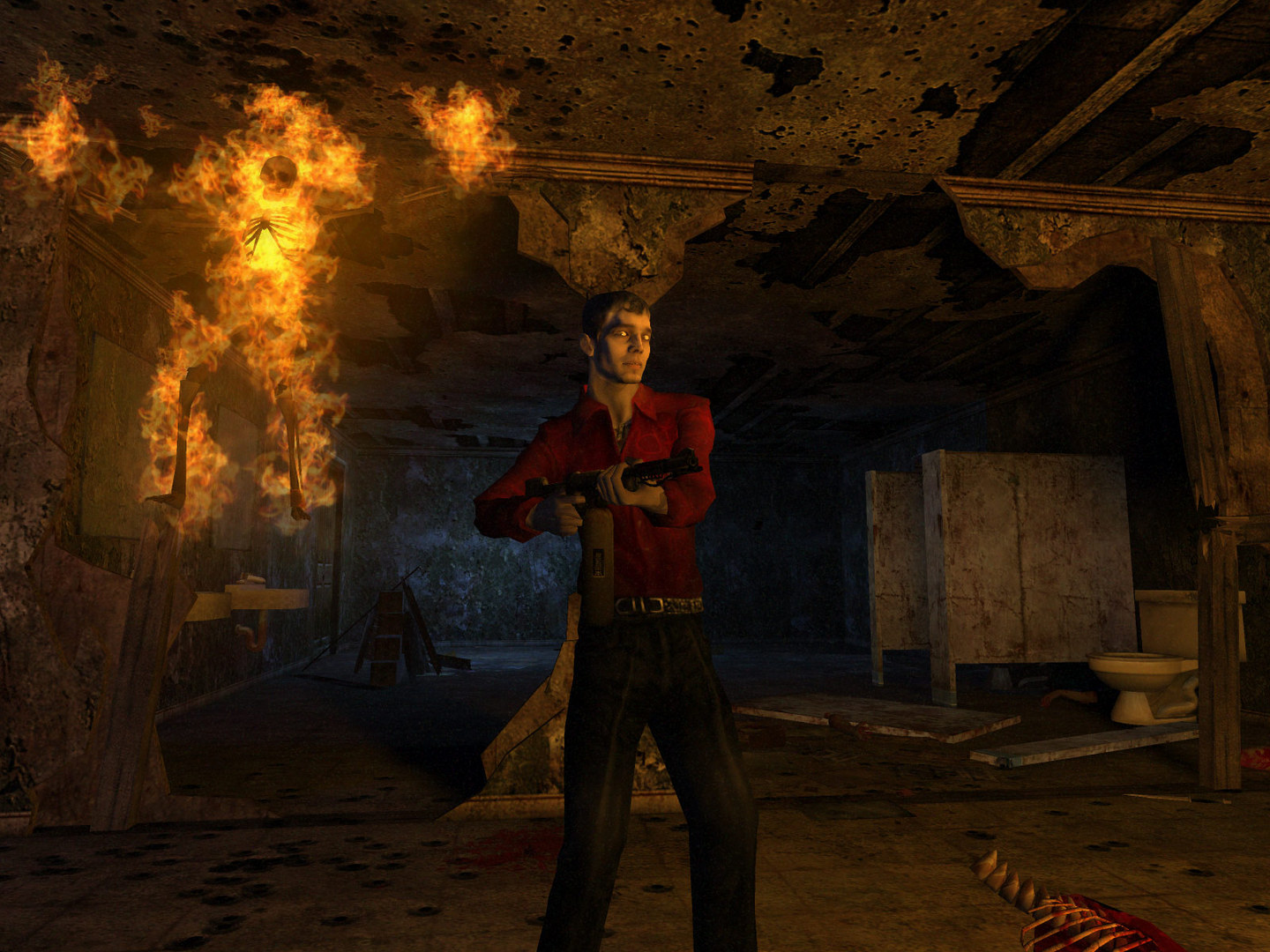
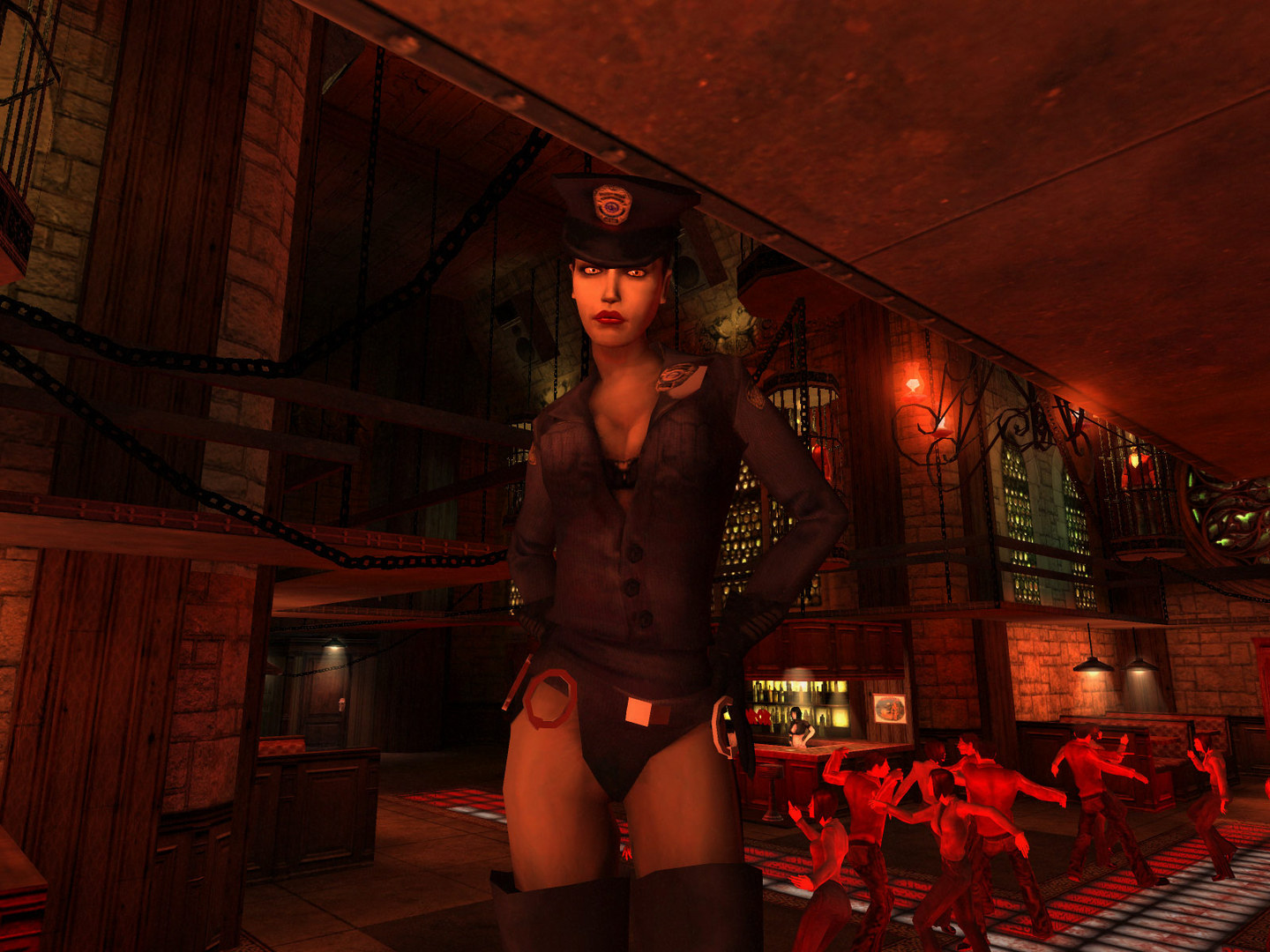
Enter a dark, urban fantasy world as a newly turned vampire struggling for survival and power. Navigate complex factions and moral dilemmas in this atmospheric RPG where your choices shape the fate of Los Angeles' undead elite.

This cult-classic RPG runs very well via CrossOver, especially with the unofficial community patch.

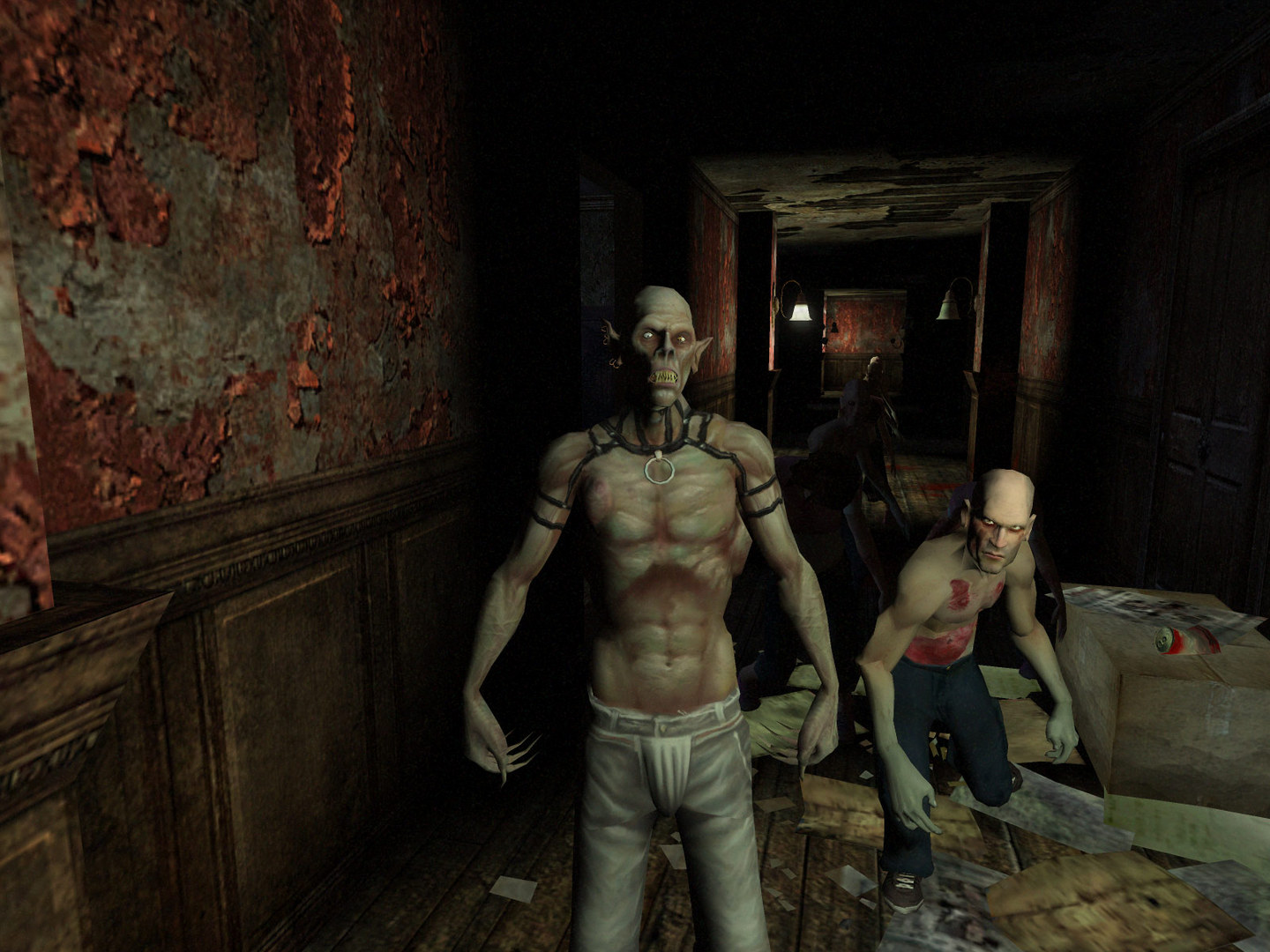
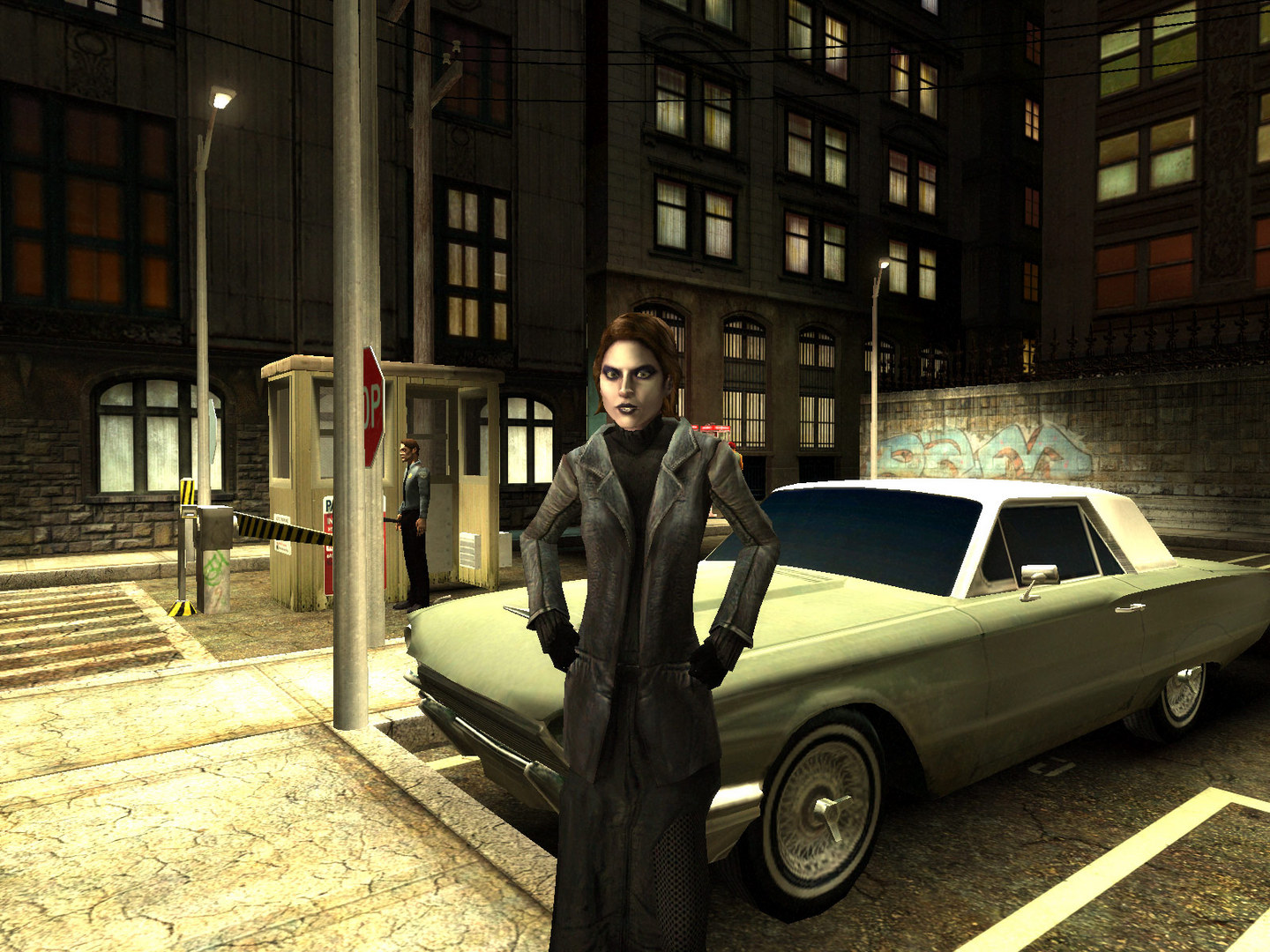
Vampire: The Masquerade - Bloodlines screenshot 1Vampire: The Masquerade - Bloodlines screenshot 2Vampire: The Masquerade - Bloodlines screenshot 3Vampire: The Masquerade - Bloodlines screenshot 4Vampire: The Masquerade - Bloodlines screenshot 5Vampire: The Masquerade - Bloodlines screenshot 6Vampire: The Masquerade - Bloodlines screenshot 7Vampire: The Masquerade - Bloodlines screenshot 8

What the world thinks

Performance

What each M-series Mac can realistically handle. Tap any chip to report your experience.

M1 chip
High
~60 fps
M2 chip
Ultra
~60 fps
M3 chip
Ultra
~120 fps
M4 chip
Ultra
~120 fps
M5 chip
Ultra
~120 fps
Best way to play it on Mac

This cult-classic RPG runs very well via CrossOver, especially with the unofficial community patch.

See if this is the right method for your setup

Ways to play Vampire: The Masquerade - Bloodlines on Mac

Here are all the options available, ranked by what we recommend first.

Compare methods at a glance

Lower = better

How each supported method stacks up on setup effort, time and runtime overhead.

  • ParallelsVMTop pick
    Setup
    Moderate
    Time
    30 min
    Overhead
    High
  • CrossOverTranslation
    Setup
    Moderate
    Time
    15 min
    Overhead
    Medium

Where to buy Vampire: The Masquerade - Bloodlines

Checking which partner stores stock this game…

Platform-by-platform reliability

Loading per-platform notes…

Step-by-step setup guides

Idiot-proof walkthroughs for every method.

How to run Vampire: The Masquerade - Bloodlines on Mac with Parallels

Good· Compatibility

Using Parallels to play Vampire: The Masquerade - Bloodlines means running a full copy of Windows 11 ARM inside macOS. This is the most "it just works" approach for games that don't behave under CrossOver, and DirectX 11 is hardware-accelerated. You'll need a Windows license and roughly 80 GB of disk space.

Step-by-step

  1. Buy / start a trial of Parallels Desktop.
  2. Install Windows 11 ARM via the one-click wizard.
  3. Inside Windows, install Steam / Xbox app and Vampire: The Masquerade - Bloodlines.
  4. Enable DirectX 11 in Parallels settings for best 3D performance.

Video proof

Try Parallels Desktop freeAffiliate link — supports the site at no extra cost.

How to run Vampire: The Masquerade - Bloodlines on Mac with CrossOver

Good· Compatibility

Running Vampire: The Masquerade - Bloodlines through CrossOver translates its Windows DirectX calls into Metal on Apple Silicon — no reboot, no Windows license, no virtual machine. Most setup time is spent on first-time bottle configuration and installing the game launcher (Steam, Epic, etc.) inside CrossOver. Once that's done, launching feels close to native. Expect 15–30 minutes of setup on the first run.

Step-by-step

Step 1 — Create a bottle

  1. Open CrossOver → click New Bottle
  2. Name it after the game (e.g. Vampire: The Masquerade - Bloodlines) and choose Windows 10 64-bit
  3. Open the bottle's Settings and set:

- Graphics: D3DMetal (not DXVK)

- Synchronization: ESync

- High Resolution Mode: Off

Step 2 — Install the game launcher

  1. Inside CrossOver, click Install Application → search for Steam (or Epic Games Launcher if you own it there)
  2. Install it into the same bottle you just created
  3. Launch Steam, log in, and let it fully update before proceeding

Step 3 — Install and launch Vampire: The Masquerade - Bloodlines

  1. Open Steam (or your launcher) inside CrossOver
  2. Install Vampire: The Masquerade - Bloodlines through the launcher as normal
  3. Launch the game — use the launcher's Play button, not CrossOver directly
  4. First launch may take 30–90 seconds to show a window. Don't force-quit unless it hangs for several minutes.

Step 4 — If you hit issues

  • Black screen / stuck in small window: go to Settings → Graphics in-game, set Screen Type to Fullscreen, then restart
  • Resolution resets on every launch: find the game's config/settings file and set the resolution values manually, then mark the file Read-Only to prevent the game overwriting it
  • Crashes on startup: try switching the bottle's Synchronization from ESync to MSync, or vice versa

Video proof

Try CrossOver free for 14 daysAffiliate link — supports the site at no extra cost.

Our recommendation

For most Mac players we recommend Parallels as the fastest, smoothest way to play Vampire: The Masquerade - Bloodlines. Full Windows 11 ARM inside macOS.

MethodQualityDifficultyCost
ParallelsPickExcellentMedium$99/year + Windows license
CrossOverGoodMedium$74 one-time / $39/year
Try Parallels Desktop free

Comments

Share what worked for you running Vampire: The Masquerade - Bloodlines on Mac.

Be kind. No spam.

Loading comments…

Frequently asked questions