Xbox Cloud Gaming
Needs 25+ Mbps internet, wired ideal.
Difficulty: MediumCost: $74 (CrossOver)Good

Action · 2020
Best played by streaming from the cloud via Xbox Cloud Gaming.
Overall rating: Runs great on Mac · 92% of 12 players say it runs well
Best played by streaming from the cloud via Xbox Cloud Gaming.
Stream Grand Theft Auto IV: The Complete Edition via Game Pass Ultimate from any browser — no install required.
| Method | Quality | Difficulty | Cost | |
|---|---|---|---|---|
| Xbox Cloud GamingPick | Good | Easy | $16.99 /mo | Get it ↗ |
| Parallels | Estimate | Medium | $99/yr | Get it ↗ |
| GeForce NOW | Estimate | Easy | Free / $9.99 /mo | Get it ↗ |
Niko Bellic, Johnny Klebitz and Luis Lopez all have one thing in common - they live in the worst city in America. Liberty City worships money and status, and is heaven for those who have them and a living nightmare for those who don't.
GTA IV runs surprisingly well on Apple Silicon via CrossOver, though it requires specific launch commands to correctly recognize modern VRAM amounts.
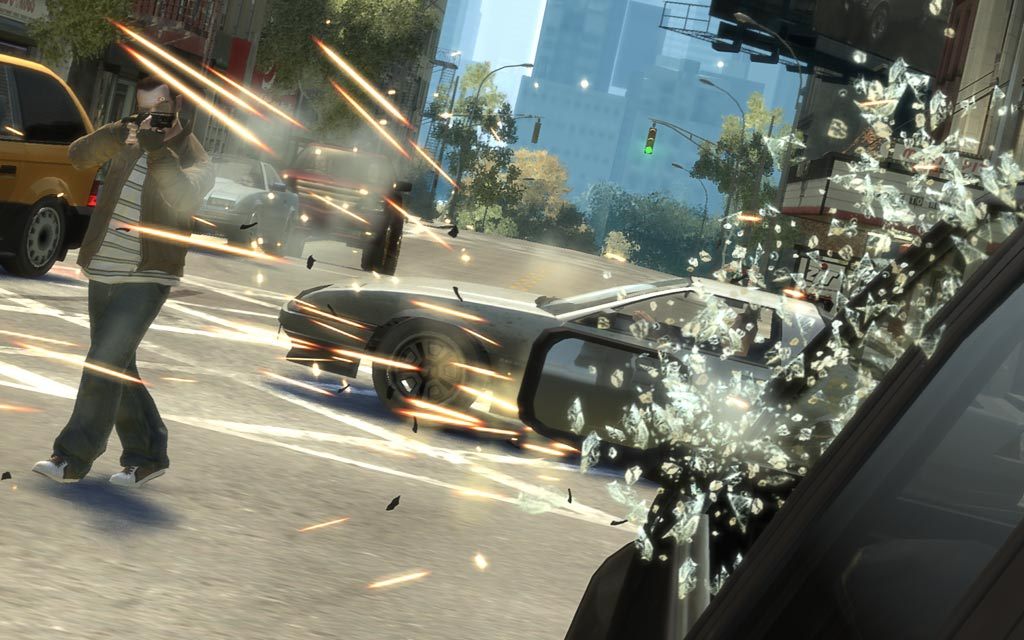



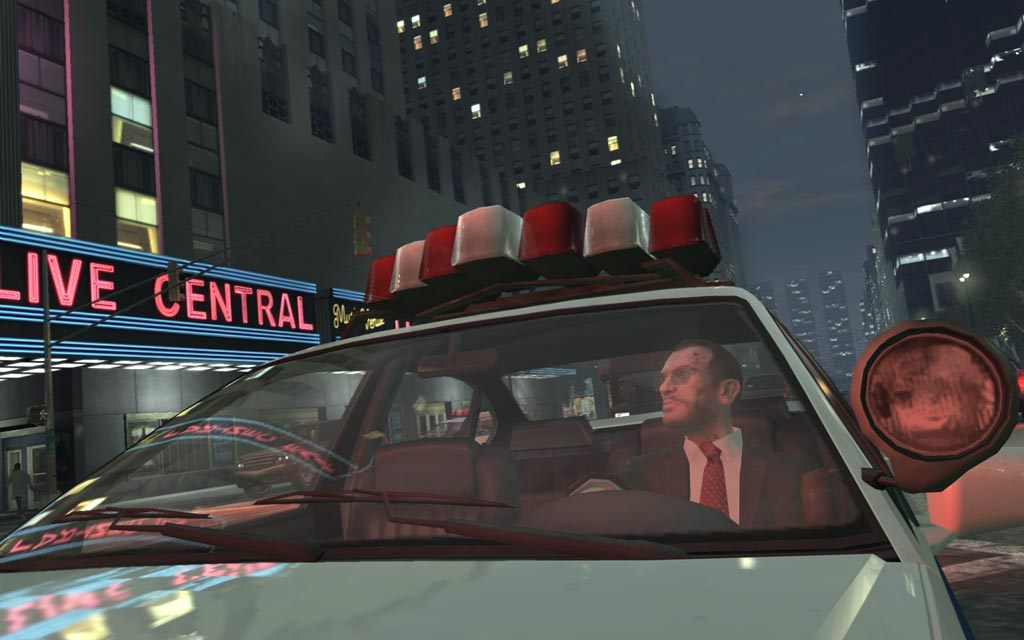
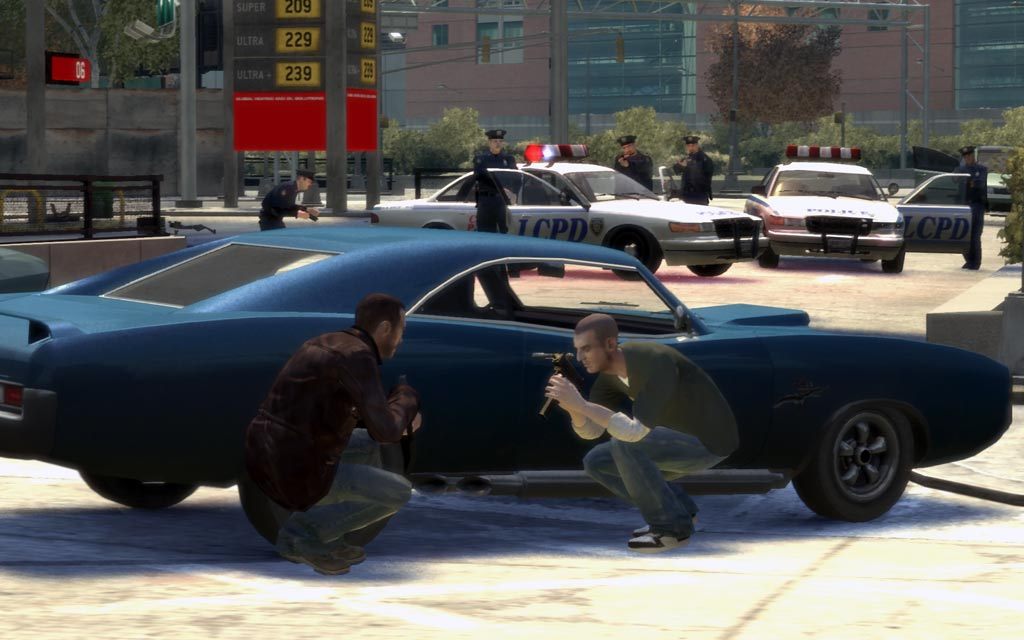
How Grand Theft Auto IV: The Complete Edition runs on your Mac, from our performance model and player reports.
See exactly how Grand Theft Auto IV: The Complete Edition will run on your Mac
Pick your chip and RAM for a personalised estimate.
GTA IV runs surprisingly well on Apple Silicon via CrossOver, though it requires specific launch commands to correctly recognize modern VRAM amounts.
Xbox Cloud Gaming and GeForce NOW are also available for cloud performance on a strong connection.
Needs 25+ Mbps internet, wired ideal.
Full Windows 11 ARM inside macOS.
Needs 25+ Mbps internet, wired ideal.
How each supported method stacks up on setup effort, time and runtime overhead.
Live prices compared across trusted PC key sellers — updates every few hours.
Loading per-platform notes…
Idiot-proof walkthroughs for every method.
Streaming Grand Theft Auto IV: The Complete Edition through Xbox Cloud Gaming is the fastest way to start playing on a Mac — there's nothing to install, no Windows VM, no compatibility layer. The game runs on a remote GPU and your Mac just receives the video, which means even a base M1 MacBook Air can play the most demanding AAA titles at high settings. The tradeoff is that you need a stable internet connection (ideally wired or 5GHz Wi-Fi with 25+ Mbps down) and a subscription.
Using Parallels to play Grand Theft Auto IV: The Complete Edition means running a full copy of Windows 11 ARM inside macOS. This is the most "it just works" approach for games that don't behave under CrossOver, and DirectX 11 is hardware-accelerated. You'll need a Windows license and roughly 80 GB of disk space.
Streaming Grand Theft Auto IV: The Complete Edition through GeForce NOW is the fastest way to start playing on a Mac — there's nothing to install, no Windows VM, no compatibility layer. The game runs on a remote GPU and your Mac just receives the video, which means even a base M1 MacBook Air can play the most demanding AAA titles at high settings. The tradeoff is that you need a stable internet connection (ideally wired or 5GHz Wi-Fi with 25+ Mbps down) and a subscription.
For most Mac players the best way to play Grand Theft Auto IV: The Complete Edition is streaming it through Xbox Cloud Gaming. Needs 25+ Mbps internet, wired ideal.
| Method | Quality | Difficulty | Cost |
|---|---|---|---|
| Xbox Cloud GamingPick | Good | Easy | Game Pass Ultimate subscription |
| Parallels | Estimate | Medium | $99/year + Windows licence |
| GeForce NOW | Estimate | Easy | Free tier / $9.99+ per month |
Share what worked for you running Grand Theft Auto IV: The Complete Edition on Mac.
Loading comments…