← Back
Flashing Lights - Police, Firefighting, Emergency Services (EMS) Simulator cover art
Native

How to play Flashing Lights - Police, Firefighting, Emergency Services (EMS) Simulator on Mac

Runs natively on Apple Silicon — no extra software needed.

Overall rating: Runs great on Mac · 100% of 1 players say it runs well

Your setup
Detect your Mac to see whether Flashing Lights - Police, Firefighting, Emergency Services (EMS) Simulator will run.

Runs natively on Apple Silicon — no extra software needed.

How to run Flashing Lights - Police, Firefighting, Emergency Services (EMS) Simulator on your Mac in 2026

Best path: Native Mac build

Flashing Lights - Police, Firefighting, Emergency Services (EMS) Simulator has a native Apple Silicon build — full Metal acceleration, best battery life, zero faff.

MethodQualityDifficultyCost
NativePickExcellentEasyGame price only

Flashing Lights - Police, Firefighting, Emergency Services (EMS) Simulator

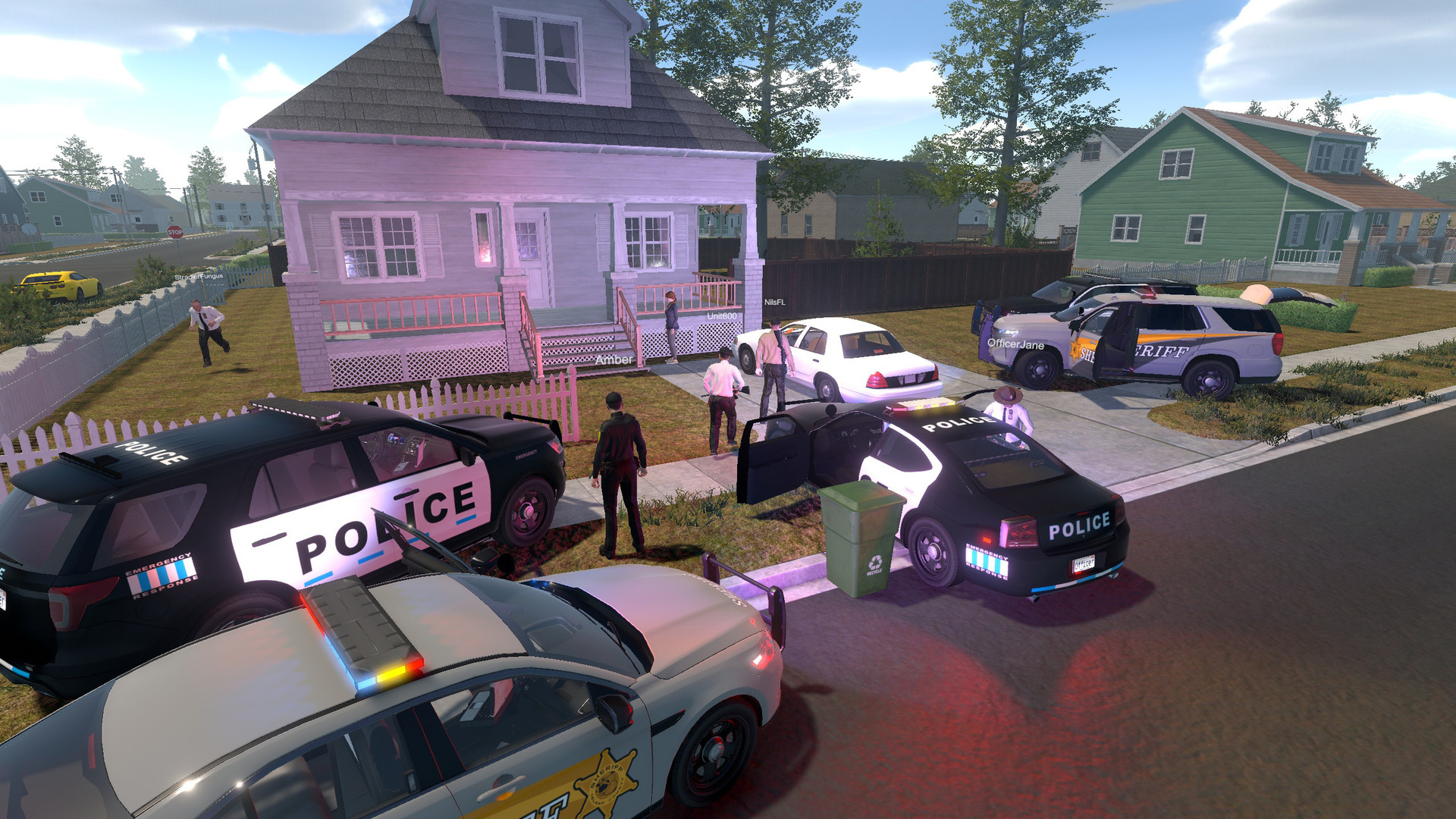
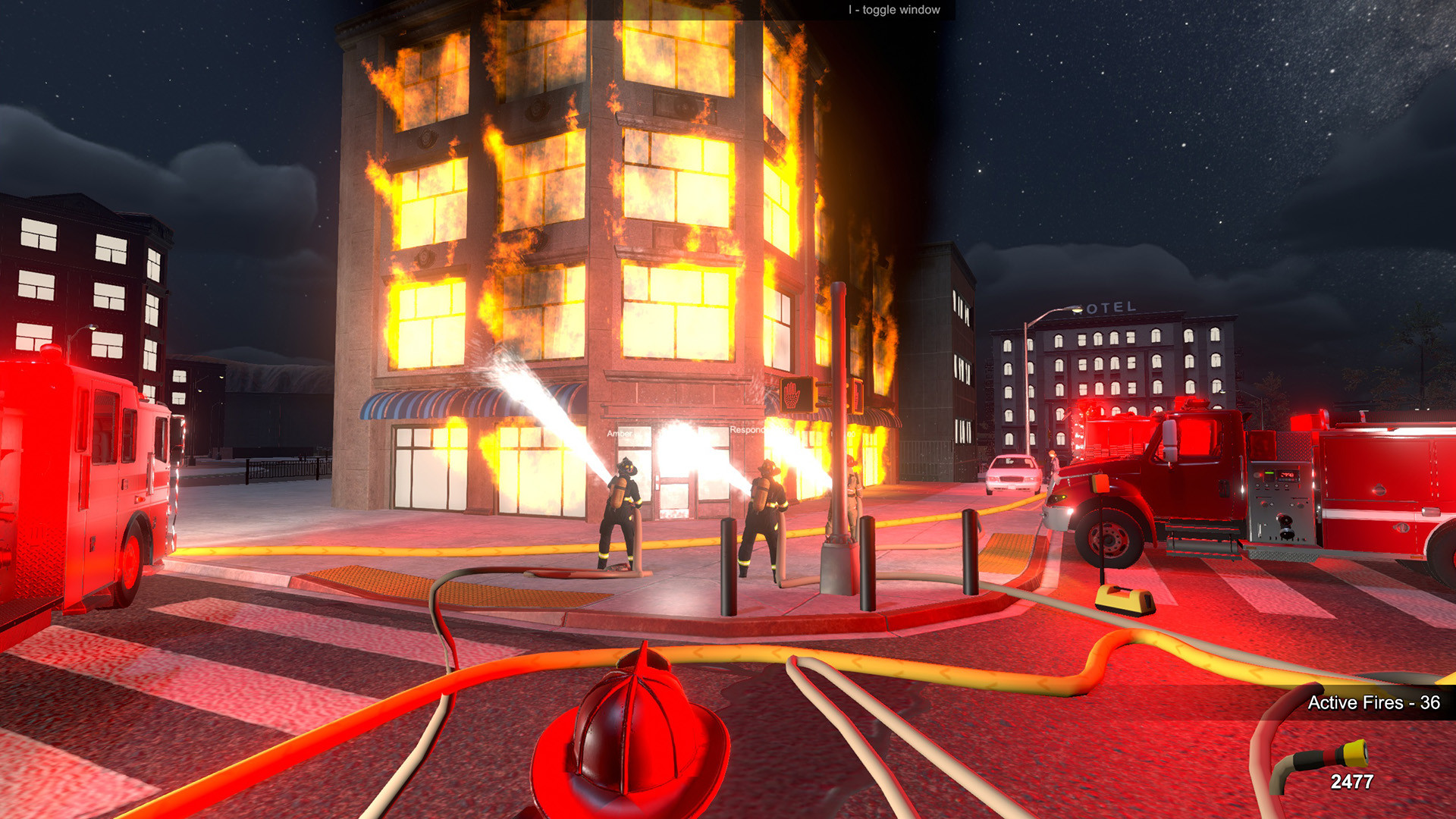
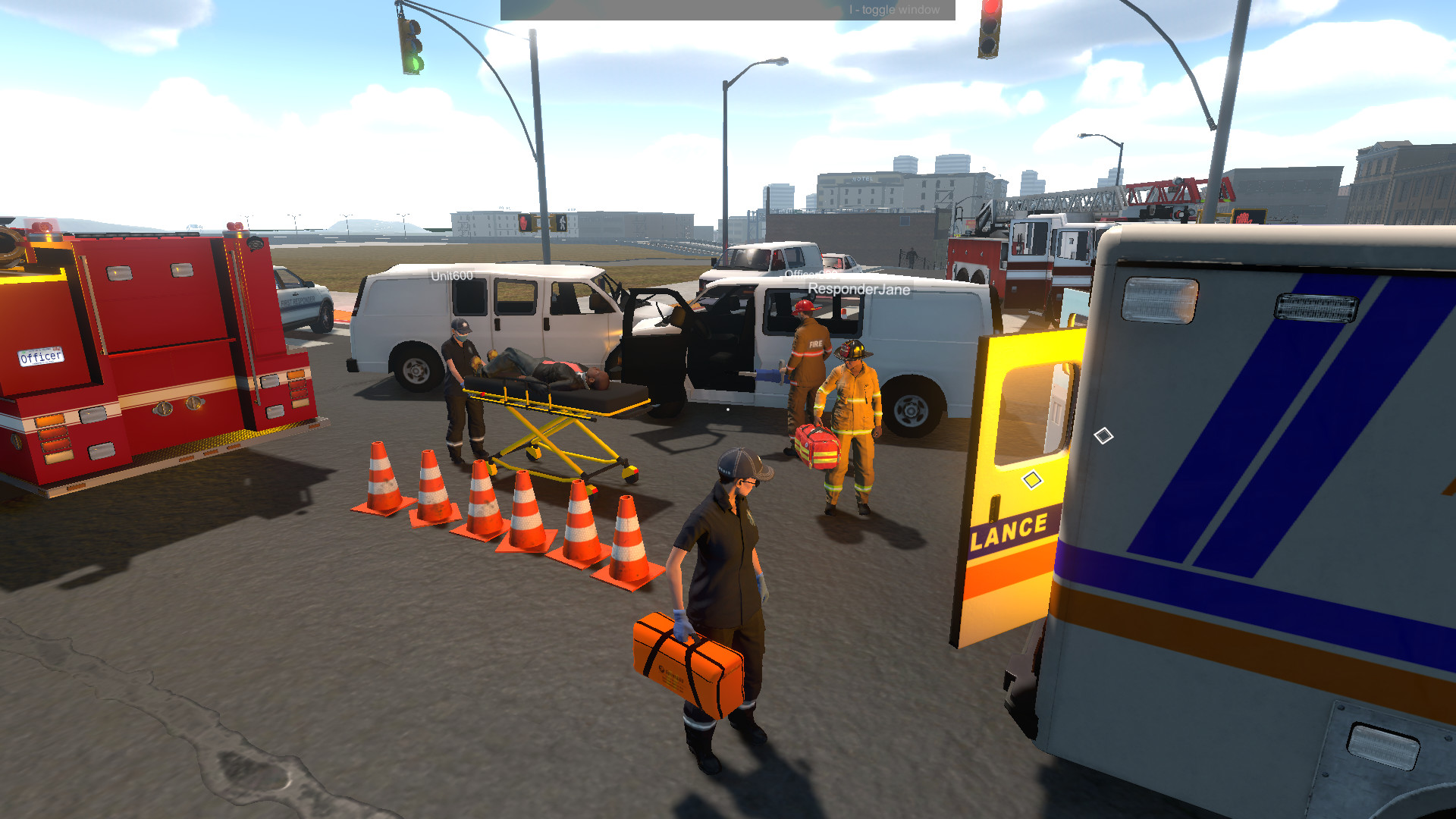
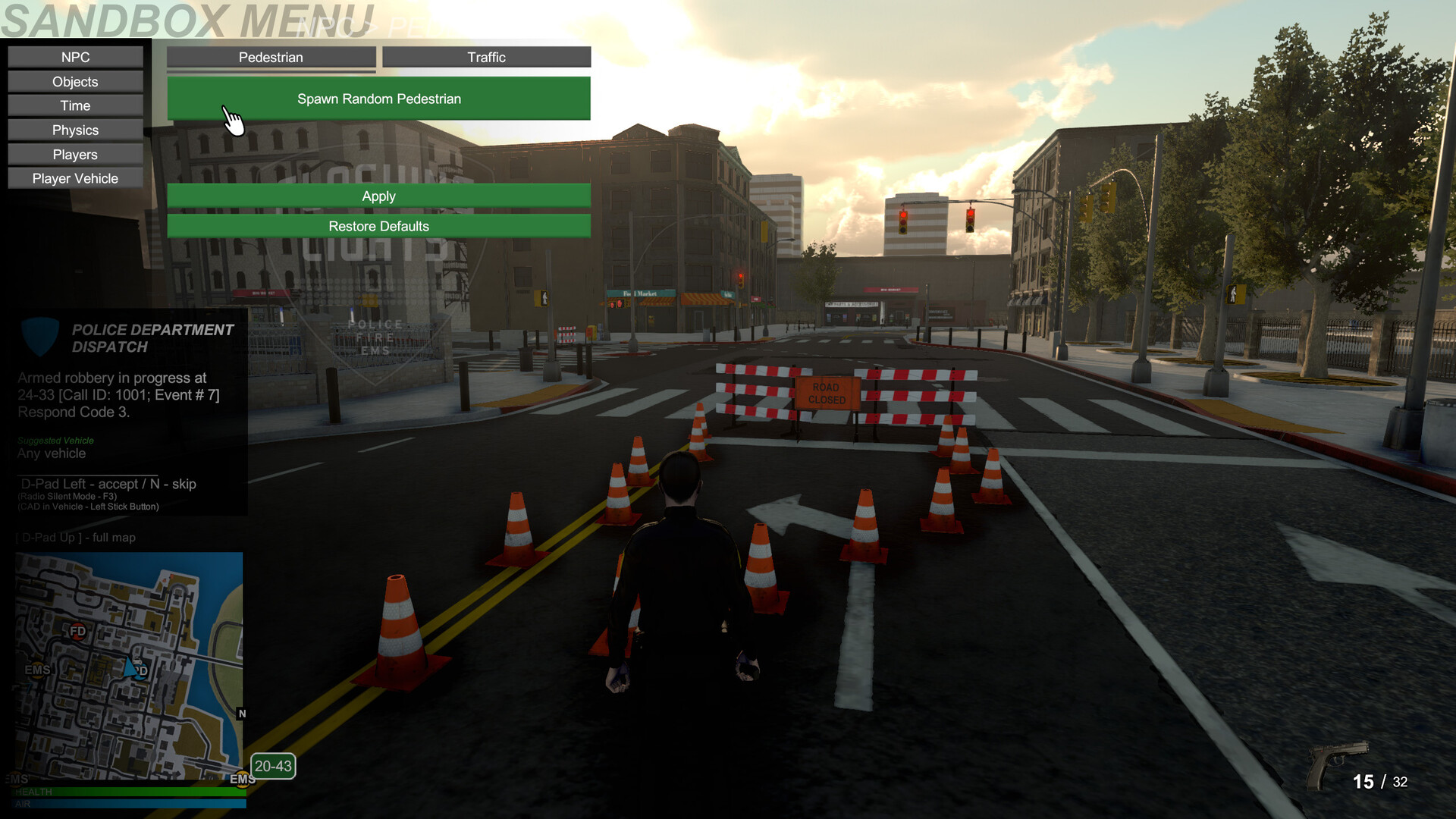
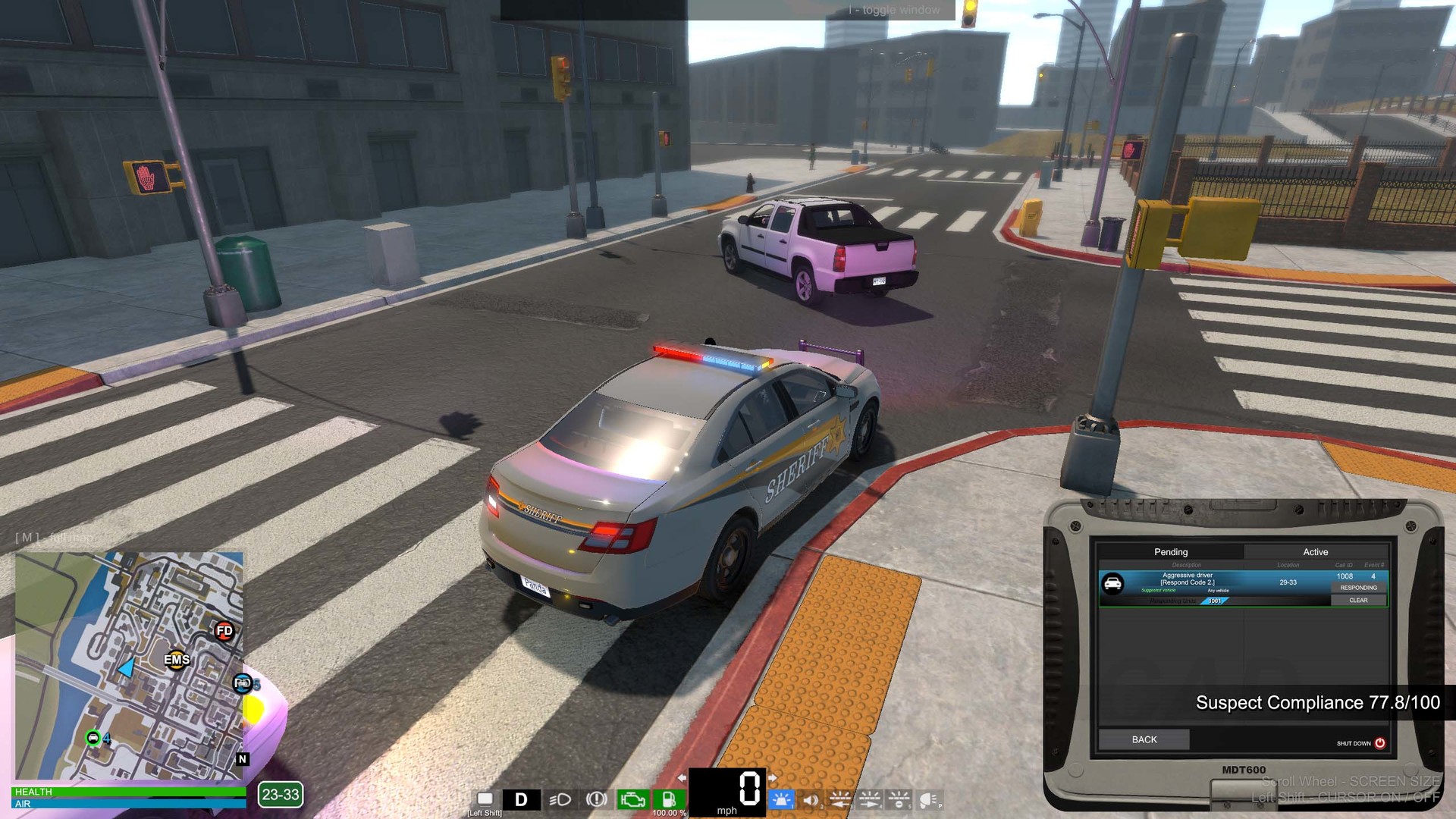
Flashing Lights places you in the role of an emergency responder, managing police, fire, and EMS units. Respond to chaotic situations and make critical decisions to save lives and maintain order in a dynamic city.

Flashing Lights - Police, Firefighting, Emergency Services (EMS) Simulator has a native Apple Silicon build — download it directly and play without any extra software.

What the world thinks

Performance

What each M-series Mac can realistically handle. Tap any chip to report your experience.

M1 chip
High
~60 fps
M2 chip
High
~60 fps
M3 chip
Ultra
~60 fps
M4 chip
Ultra
~120 fps
M5 chip
Ultra
~120 fps
Best way to play it on Mac

Flashing Lights - Police, Firefighting, Emergency Services (EMS) Simulator has a native Apple Silicon build — download it directly and play without any extra software.

See if this is the right method for your setup

Ways to play Flashing Lights - Police, Firefighting, Emergency Services (EMS) Simulator on Mac

Here are all the options available, ranked by what we recommend first.

Recommended

Native

Runs directly on Apple Silicon — no extra software.

Difficulty: EasyCost: Game price onlyExcellent

Compare methods at a glance

Lower = better

How each supported method stacks up on setup effort, time and runtime overhead.

  • NativeNativeTop pick
    Setup
    Simple
    Time
    5 min
    Overhead
    Low

Where to buy Flashing Lights - Police, Firefighting, Emergency Services (EMS) Simulator

Checking which partner stores stock this game…

Platform-by-platform reliability

Loading per-platform notes…

Step-by-step setup guides

Idiot-proof walkthroughs for every method.

How to run Flashing Lights - Police, Firefighting, Emergency Services (EMS) Simulator on Mac with Native

Excellent· Native

Flashing Lights - Police, Firefighting, Emergency Services (EMS) Simulator has a native Apple Silicon build, which is the gold standard for playing on a Mac. You get full Metal acceleration, best battery life, and no compatibility weirdness. Just buy it from the Mac App Store or Steam for Mac and play.

Step-by-step

  1. Use the verified store link on this page, or open the store where you already own Flashing Lights - Police, Firefighting, Emergency Services (EMS) Simulator.
  2. Confirm the product page lists macOS / Apple Silicon support.
  3. Install and launch — no extra tools needed.

Video proof

Our recommendation

For most Mac players we recommend Native as the fastest, smoothest way to play Flashing Lights - Police, Firefighting, Emergency Services (EMS) Simulator. Runs directly on Apple Silicon — no extra software.

MethodQualityDifficultyCost
NativePickExcellentEasyGame price only

Comments

Share what worked for you running Flashing Lights - Police, Firefighting, Emergency Services (EMS) Simulator on Mac.

Be kind. No spam.

Loading comments…

Frequently asked questions