Native
Runs directly on Apple Silicon — no extra software.
Difficulty: EasyCost: $14.99Excellent

Runs natively on Apple Silicon, no extra software needed.
Overall rating: Runs great on Mac · 100% of 1 players say it runs well
Runs natively on Apple Silicon, no extra software needed.
Doki Doki Literature Club Plus! has a native Apple Silicon build — full Metal acceleration, best battery life, zero faff.
Welcome to the club! Write poems for your crush and experience the terror of school romance in this critically-acclaimed psychological horror story.
A flawless native experience that runs perfectly on any Apple Silicon Mac without the need for additional software.
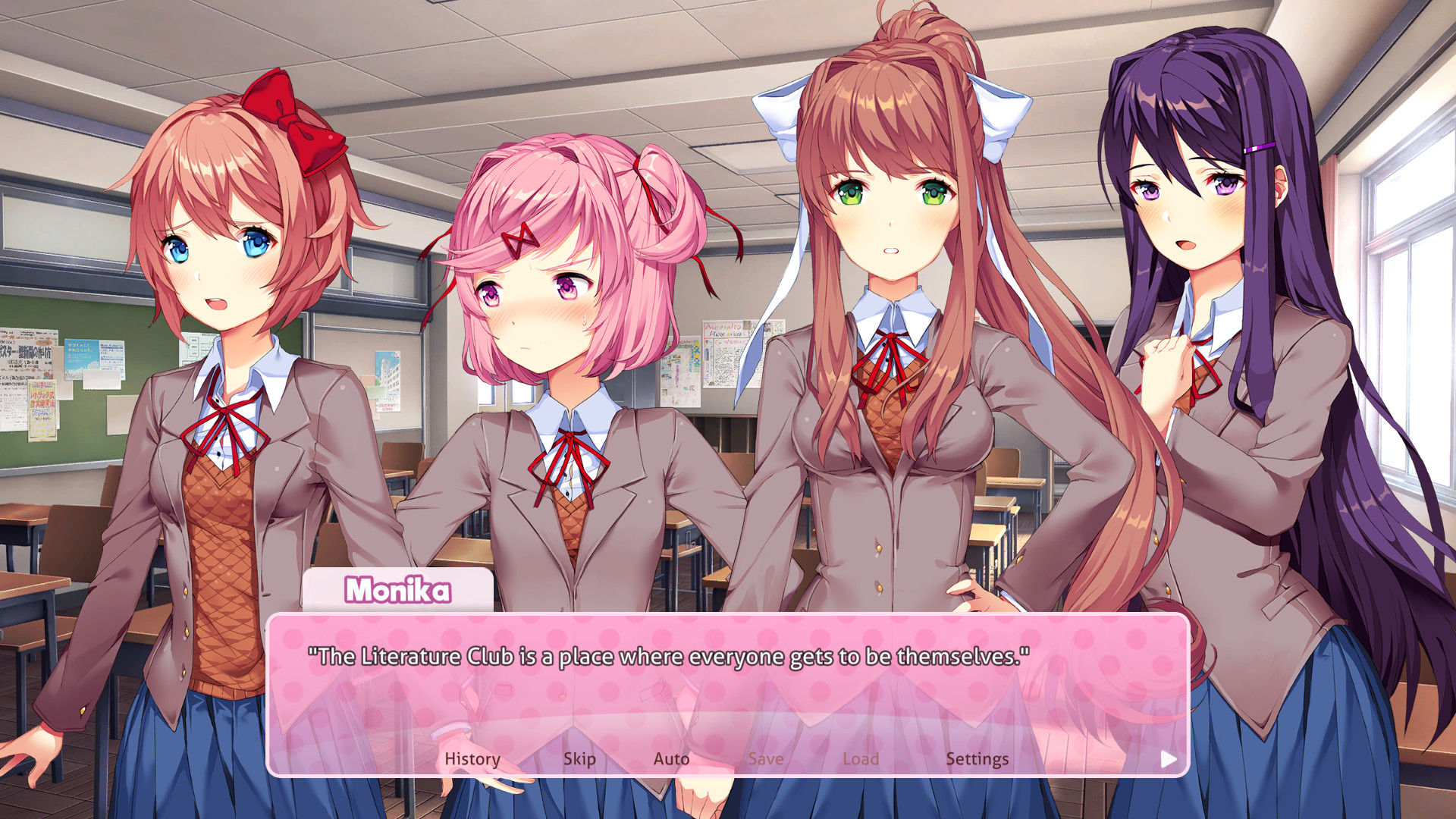
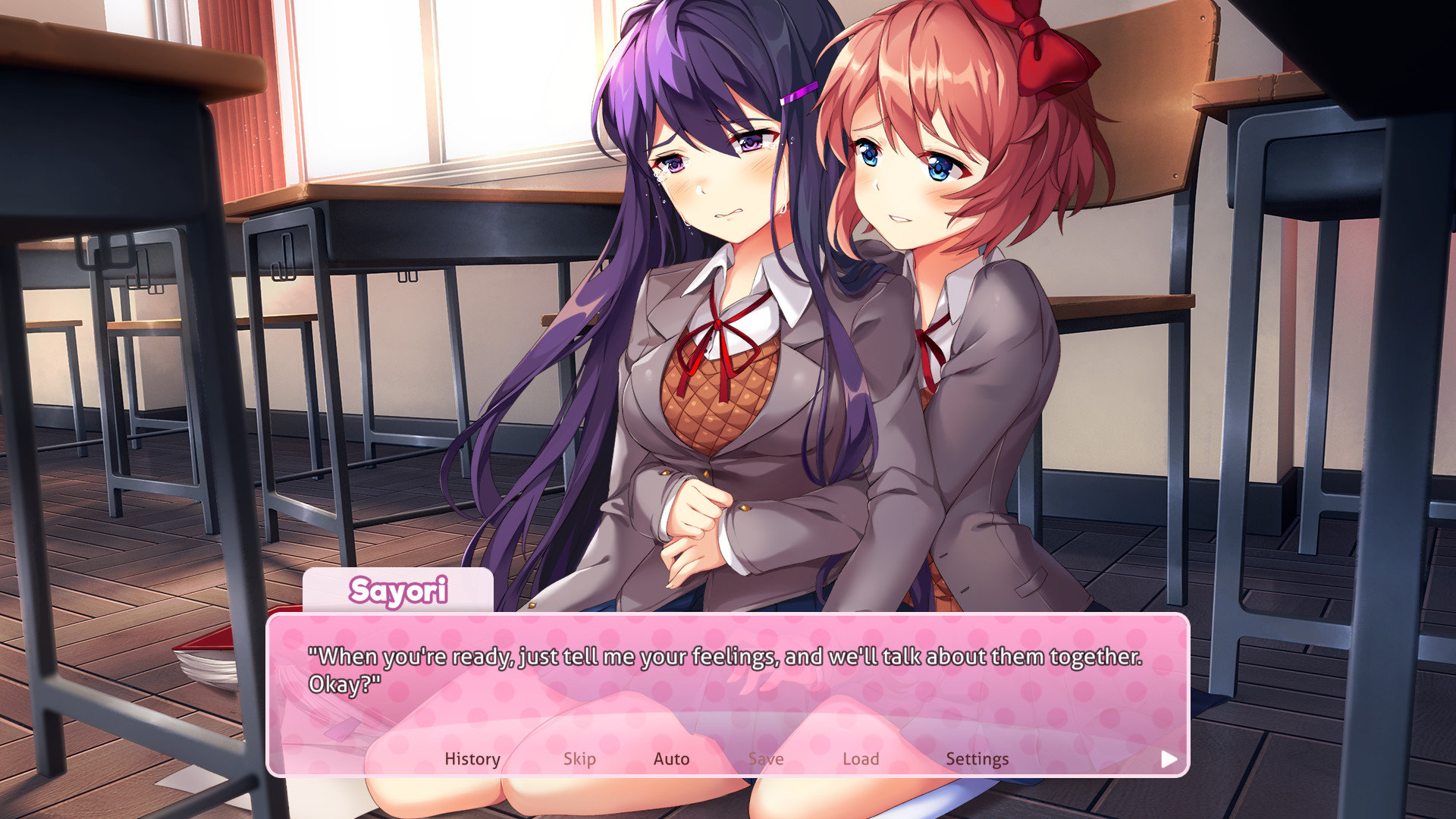

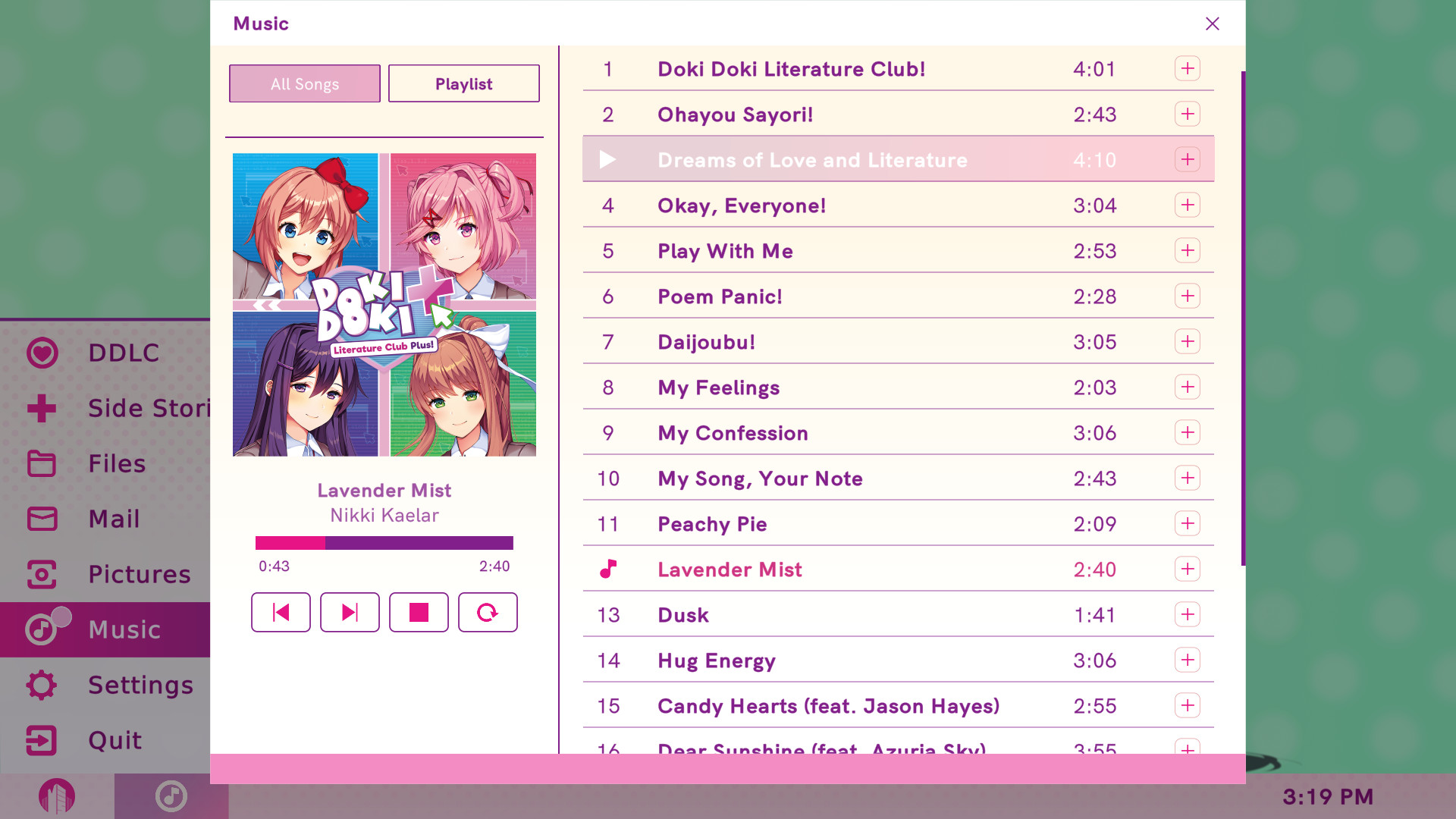
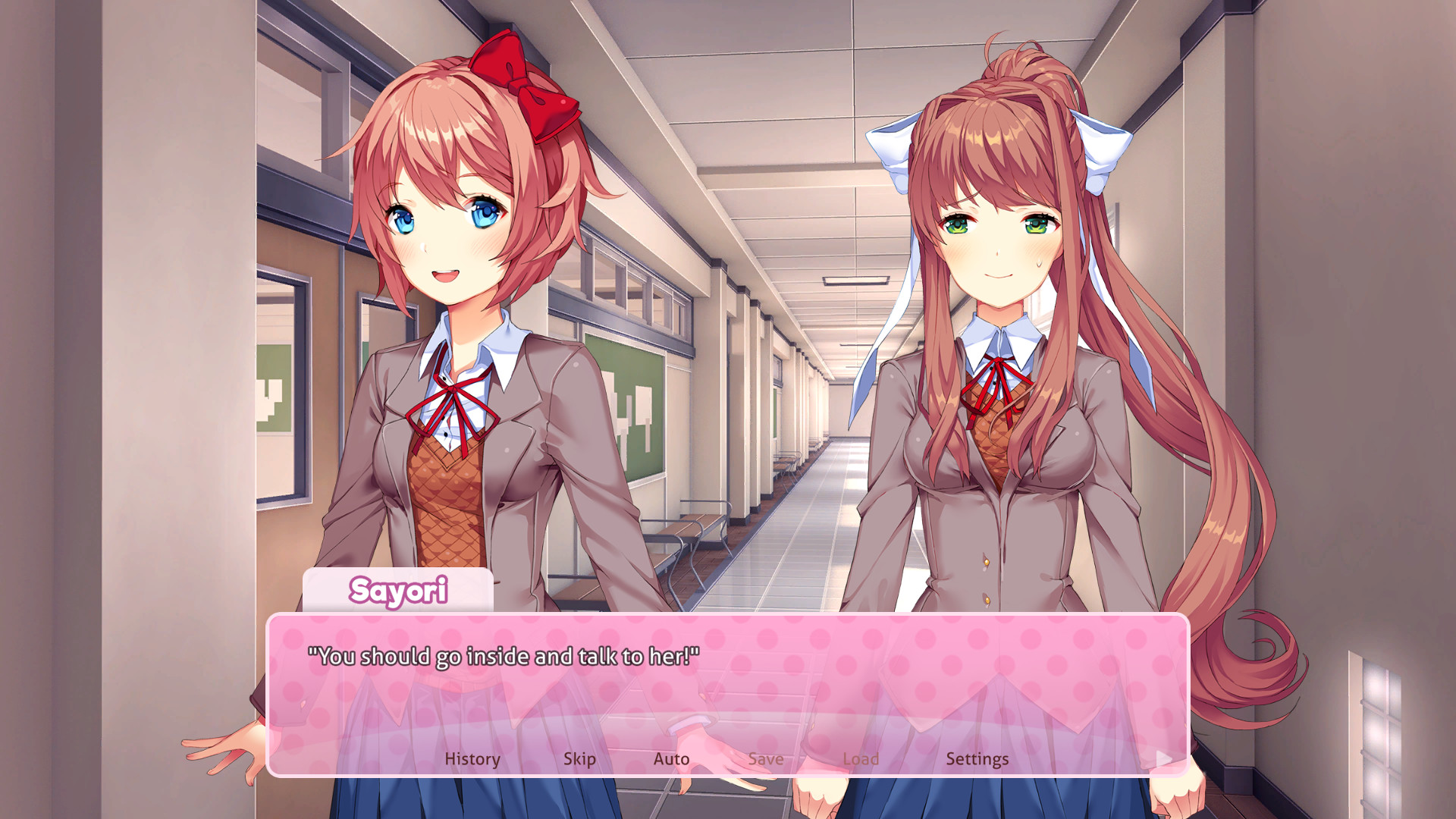

How Doki Doki Literature Club Plus! runs on your Mac, from our performance model and player reports.
See exactly how Doki Doki Literature Club Plus! will run on your Mac
Pick your chip and RAM for a personalised estimate.
A flawless native experience that runs perfectly on any Apple Silicon Mac without the need for additional software.
Here are all the options available, ranked by what we recommend first.
Runs directly on Apple Silicon — no extra software.
One-click local install, official support.
Full Windows 11 ARM inside macOS.
Needs 25+ Mbps internet, wired ideal.
How each supported method stacks up on setup effort, time and runtime overhead.
Live prices compared across trusted PC key sellers — updates every few hours.
Loading per-platform notes…
Idiot-proof walkthroughs for every method.
Doki Doki Literature Club Plus! has a native Apple Silicon build, which is the gold standard for playing on a Mac. You get full Metal acceleration, best battery life, and no compatibility weirdness. Just buy it from the Mac App Store or Steam for Mac and play.
Running Doki Doki Literature Club Plus! through CrossOver translates its Windows DirectX calls into Metal on Apple Silicon — no reboot, no Windows license, no virtual machine. Most setup time is spent on first-time bottle configuration and installing the game launcher (Steam, Epic, etc.) inside CrossOver. Once that's done, launching feels close to native. Expect 15–30 minutes of setup on the first run.
Step 1 — Create a bottle
Doki Doki Literature Club Plus!) and choose Windows 10 64-bit- Graphics: D3DMetal (not DXVK)
- Synchronization: ESync
- High Resolution Mode: Off
Step 2 — Install the game launcher
Step 3 — Install and launch Doki Doki Literature Club Plus!
Step 4 — If you hit issues
Using Parallels to play Doki Doki Literature Club Plus! means running a full copy of Windows 11 ARM inside macOS. This is the most "it just works" approach for games that don't behave under CrossOver, and DirectX 11 is hardware-accelerated. You'll need a Windows license and roughly 80 GB of disk space.
Streaming Doki Doki Literature Club Plus! through Xbox Cloud Gaming is the fastest way to start playing on a Mac — there's nothing to install, no Windows VM, no compatibility layer. The game runs on a remote GPU and your Mac just receives the video, which means even a base M1 MacBook Air can play the most demanding AAA titles at high settings. The tradeoff is that you need a stable internet connection (ideally wired or 5GHz Wi-Fi with 25+ Mbps down) and a subscription.
Doki Doki Literature Club Plus! has a native Apple Silicon build, so installing it natively is the best way to play it on your Mac. Runs directly on Apple Silicon — no extra software.
| Method | Quality | Difficulty | Cost |
|---|---|---|---|
| NativePick | Excellent | Easy | Game price only |
| CrossOver | Estimate | Medium | $74 one-time / $39/year |
| Parallels | Estimate | Medium | $99/year + Windows licence |
| Xbox Cloud Gaming | Estimate | Easy | Game Pass Ultimate subscription |
Share what worked for you running Doki Doki Literature Club Plus! on Mac.
Loading comments…