← Back
Command & Conquer: Red Alert 3 cover art
CrossOver

How to play Command & Conquer: Red Alert 3 on Mac

Strategy · 2008

Plays smoothly through CrossOver on Apple Silicon.

Overall rating: Runs great on Mac · 100% of 2 players say it runs well

Your setup
Detect your Mac to see whether Command & Conquer: Red Alert 3 will run.

Plays smoothly through CrossOver on Apple Silicon.

How to run Command & Conquer: Red Alert 3 on your Mac in 2026

Best path: CrossOver

CrossOver runs Command & Conquer: Red Alert 3 natively on Apple Silicon by translating DirectX to Metal. One-click install, no Windows VM, full local performance.

MethodQualityDifficultyCost
CrossOverPickGoodMedium$74 / $39/yrGet it ↗
ParallelsEstimateMedium$99/yrGet it ↗
GeForce NOWEstimateEasyFree / $9.99 /moGet it ↗

Command & Conquer: Red Alert 3

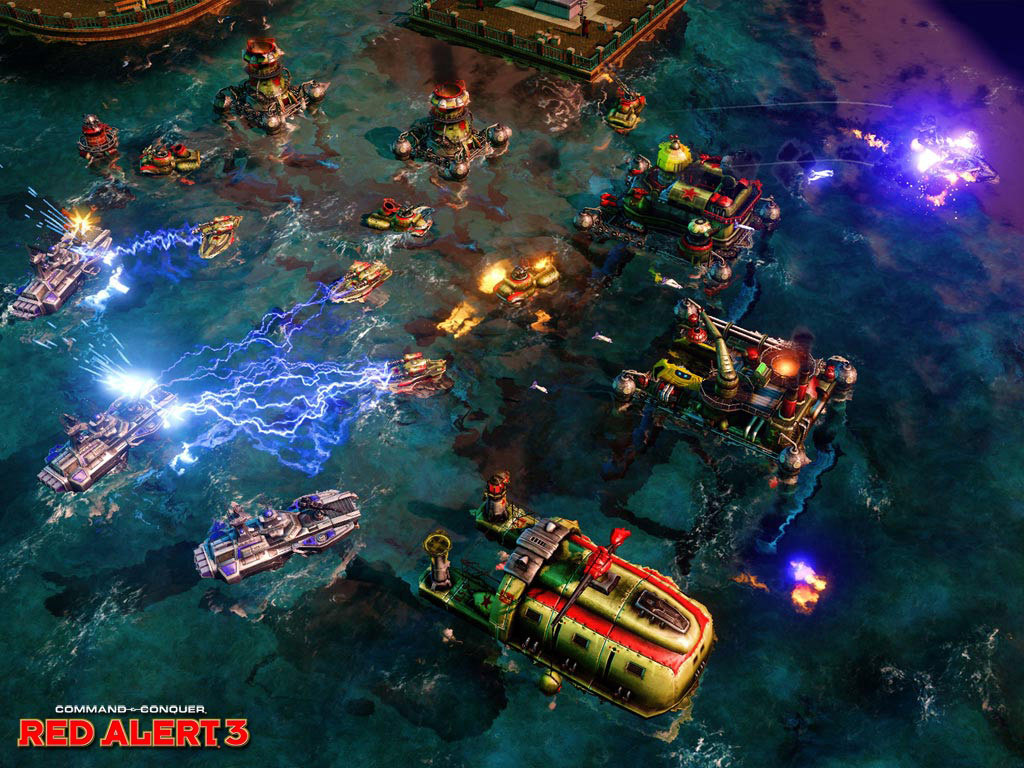
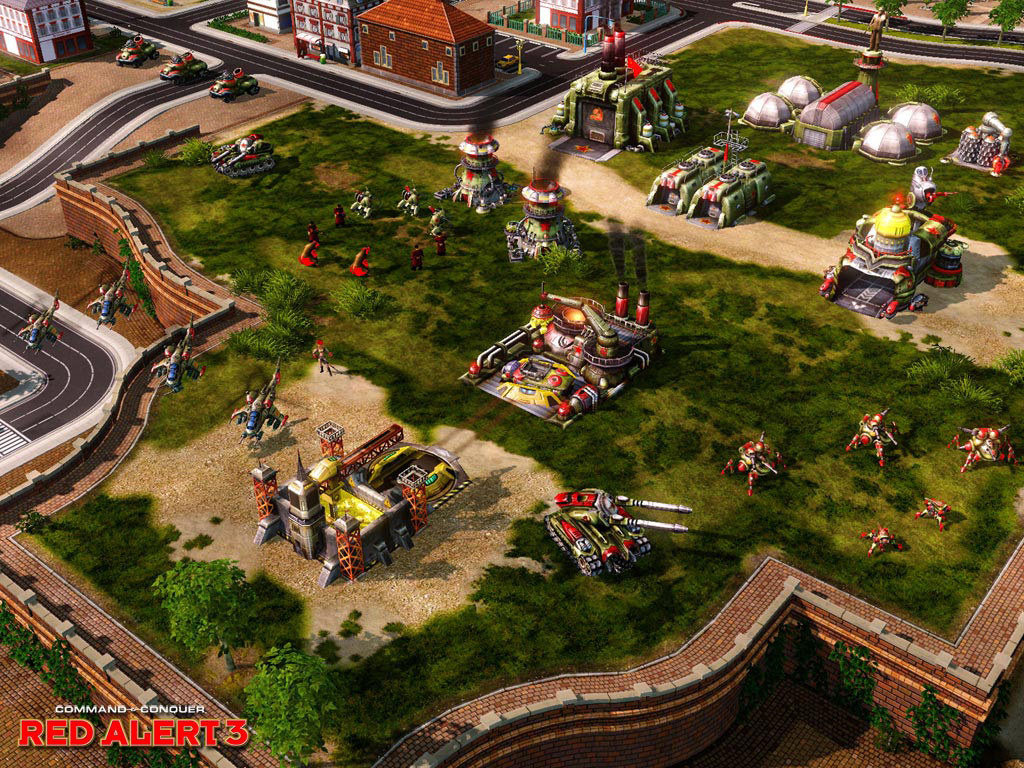
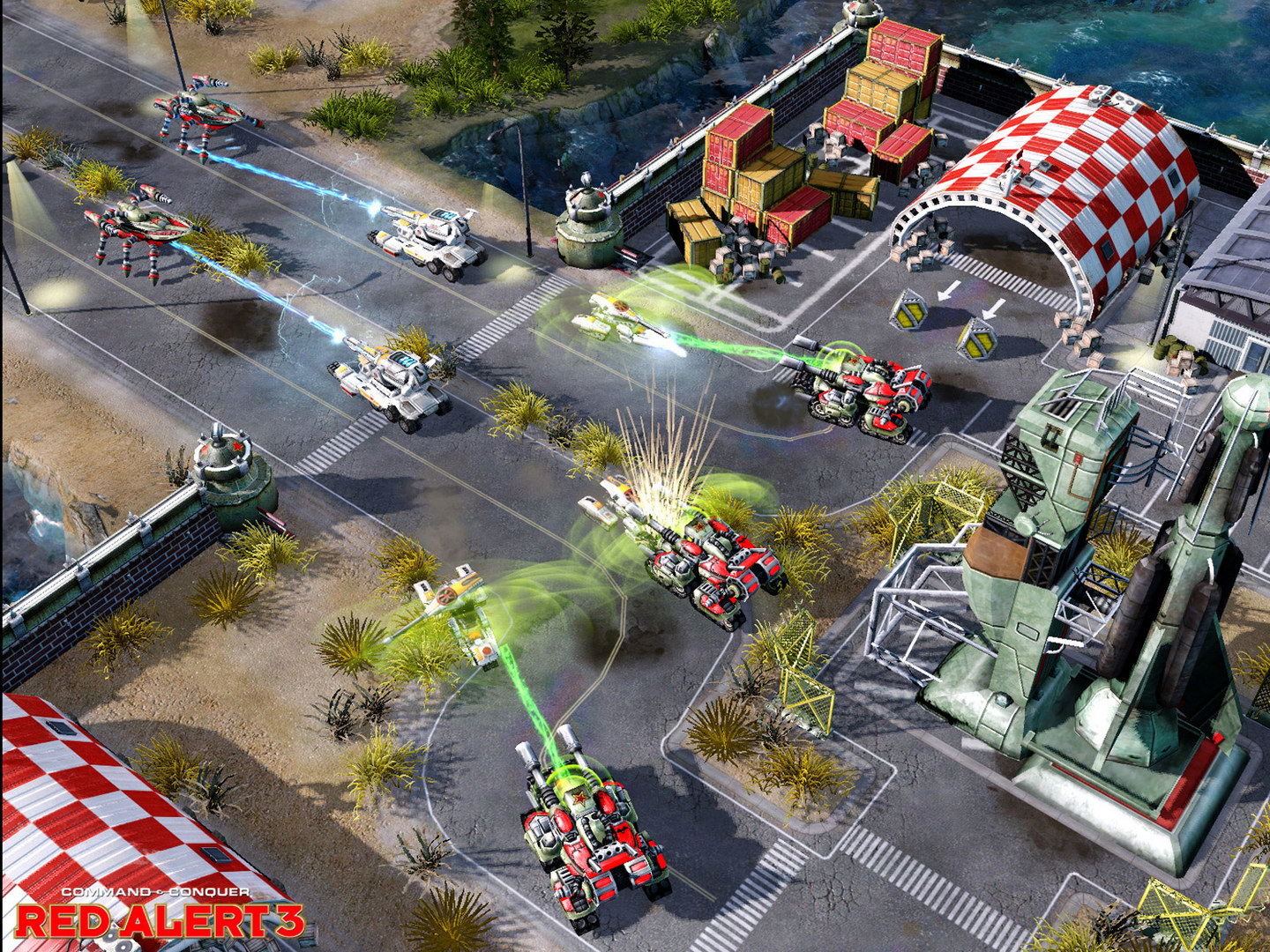
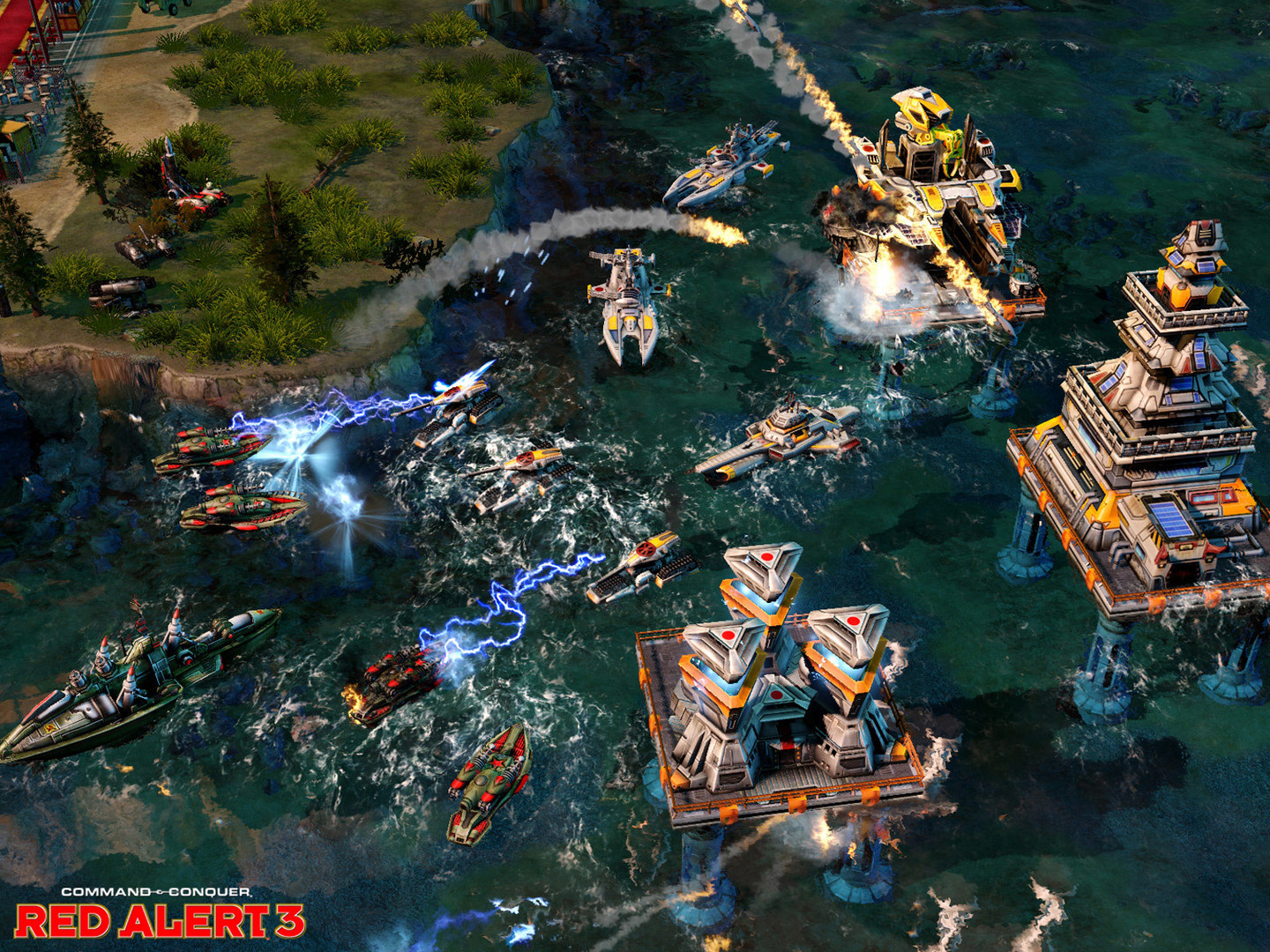
The desperate leadership of a doomed Soviet Union travels back in time to change history and restore the glory of Mother Russia.

Red Alert 3 runs excellently on Apple Silicon via CrossOver, though users must use DXVK rather than D3DMetal to avoid graphical glitches in the UI.
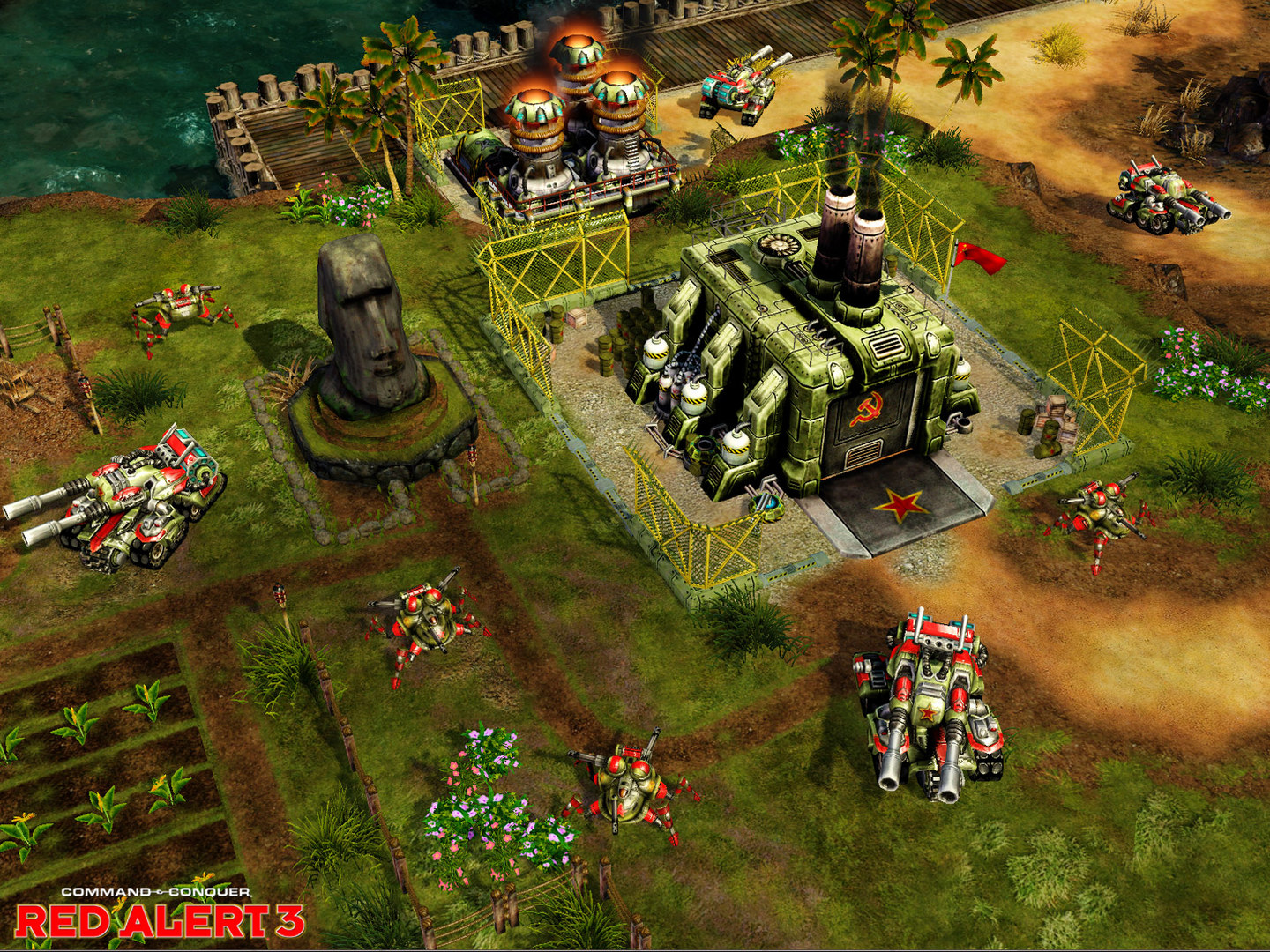
Command & Conquer: Red Alert 3 screenshot 1Command & Conquer: Red Alert 3 screenshot 2Command & Conquer: Red Alert 3 screenshot 3Command & Conquer: Red Alert 3 screenshot 4Command & Conquer: Red Alert 3 screenshot 5Command & Conquer: Red Alert 3 screenshot 6

What the world thinks

  1. Install CrossOver: Download and install CrossOver Mac.
  2. Create a Bottle: Use the 'Install' button and search for 'Command & Conquer: Red Alert 3'. CrossOver will automatically select a 'Windows 7 64-bit' bottle.
  3. Toggle D3DMetal: In the right-hand bottle settings sidebar, ensure D3DMetal (GPTK) is toggled OFF. This game runs much better with DXVK enabled.
  4. MSXML Requirement: Ensure the bottle has 'Microsoft XML Parser 3.0' and '4.0' installed (CrossOver usually scripts this, but check 'Install Software into Bottle' if the game crashes at launch).
  5. Launch: Launch via Steam or the EA App within the bottle.

Parallels Desktop

  • Setup: Create a Windows 11 ARM VM.
  • Pros: Handles the EA App more reliably than Wine-based wrappers.
  • Cons: Significant overhead. Since RA3 is 32-bit, the translation through Windows ARM can cause minor stuttering during large base explosions.

Performance

How Command & Conquer: Red Alert 3 runs on your Mac, from our performance model and player reports.

See exactly how Command & Conquer: Red Alert 3 will run on your Mac

Pick your chip and RAM for a personalised estimate.

Best way to play it on Mac

Red Alert 3 runs excellently on Apple Silicon via CrossOver, though users must use DXVK rather than D3DMetal to avoid graphical glitches in the UI.
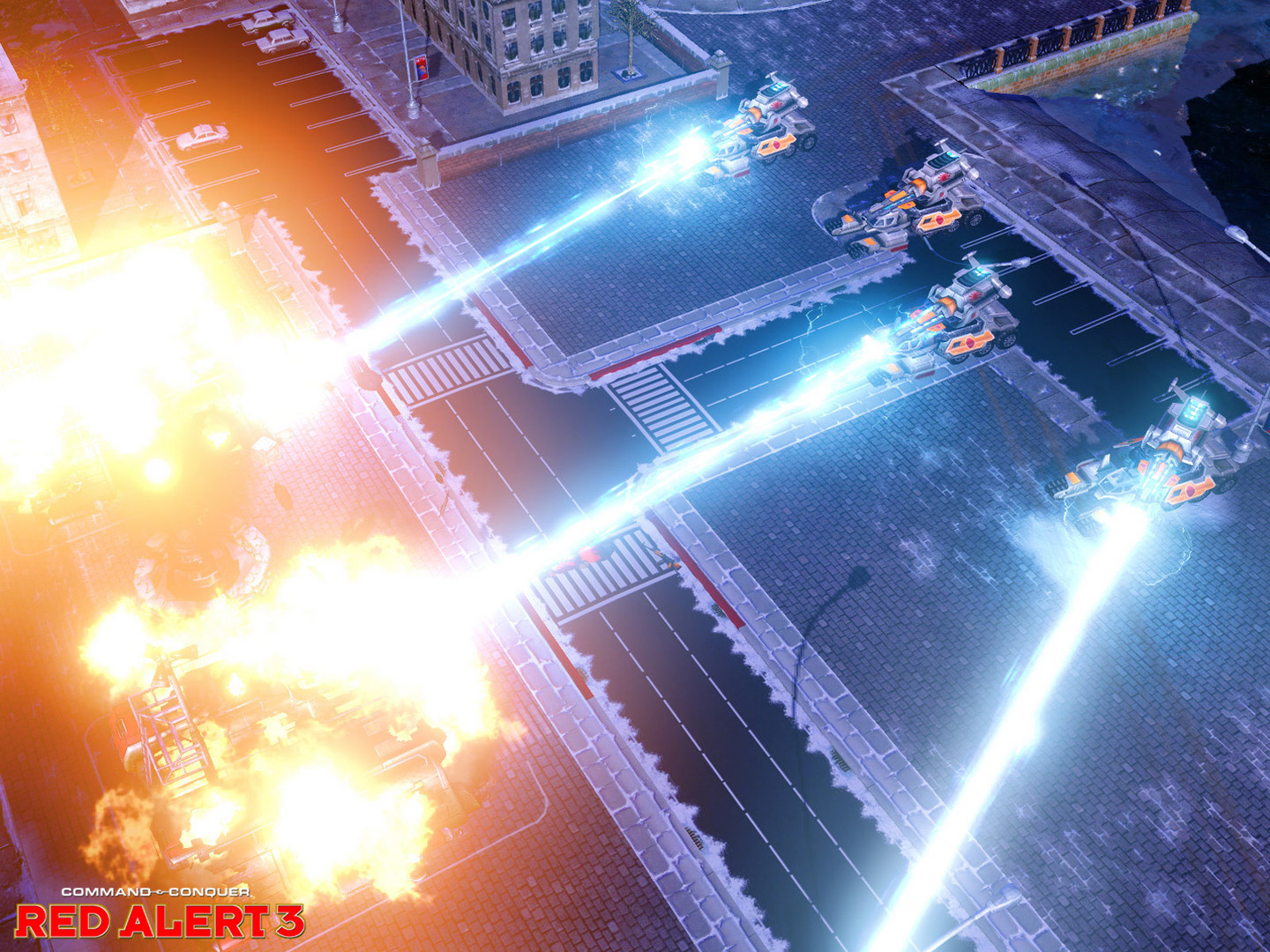
See if this is the right method for your setup

Ways to play Command & Conquer: Red Alert 3 on Mac

Here are all the options available, ranked by what we recommend first.

Compare methods at a glance

Lower = better

How each supported method stacks up on setup effort, time and runtime overhead.

  • CrossOverTranslationTop pick
    Setup
    Moderate
    Time
    15 min
    Overhead
    Medium
  • GeForce NOWCloud
    Setup
    Simple
    Time
    5 min
    Overhead
    Low
  • ParallelsVM
    Setup
    Moderate
    Time
    30 min
    Overhead
    High

Where to buy Command & Conquer: Red Alert 3

Live prices compared across trusted PC key sellers — updates every few hours.

Platform-by-platform reliability

Loading per-platform notes…

Step-by-step setup guides

Idiot-proof walkthroughs for every method.

How to run Command & Conquer: Red Alert 3 on Mac with CrossOver

Good· Compatibility

Running Command & Conquer: Red Alert 3 through CrossOver translates its Windows DirectX calls into Metal on Apple Silicon — no reboot, no Windows license, no virtual machine. Most setup time is spent on first-time bottle configuration and installing the game launcher (Steam, Epic, etc.) inside CrossOver. Once that's done, launching feels close to native. Expect 15–30 minutes of setup on the first run.

Step-by-step

Step 1 — Create a bottle

  1. Open CrossOver → click New Bottle
  2. Name it after the game (e.g. Command & Conquer: Red Alert 3) and choose Windows 10 64-bit
  3. Open the bottle's Settings and set:

- Graphics: D3DMetal (not DXVK)

- Synchronization: ESync

- High Resolution Mode: Off

Step 2 — Install the game launcher

  1. Inside CrossOver, click Install Application → search for Steam (or Epic Games Launcher if you own it there)
  2. Install it into the same bottle you just created
  3. Launch Steam, log in, and let it fully update before proceeding

Step 3 — Install and launch Command & Conquer: Red Alert 3

  1. Open Steam (or your launcher) inside CrossOver
  2. Install Command & Conquer: Red Alert 3 through the launcher as normal
  3. Launch the game — use the launcher's Play button, not CrossOver directly
  4. First launch may take 30–90 seconds to show a window. Don't force-quit unless it hangs for several minutes.

Step 4 — If you hit issues

  • Black screen / stuck in small window: go to Settings → Graphics in-game, set Screen Type to Fullscreen, then restart
  • Resolution resets on every launch: find the game's config/settings file and set the resolution values manually, then mark the file Read-Only to prevent the game overwriting it
  • Crashes on startup: try switching the bottle's Synchronization from ESync to MSync, or vice versa

Video proof

Try CrossOver free for 14 daysAffiliate link — supports the site at no extra cost.

How to run Command & Conquer: Red Alert 3 on Mac with Parallels

Estimate· Compatibility

Using Parallels to play Command & Conquer: Red Alert 3 means running a full copy of Windows 11 ARM inside macOS. This is the most "it just works" approach for games that don't behave under CrossOver, and DirectX 11 is hardware-accelerated. You'll need a Windows license and roughly 80 GB of disk space.

Step-by-step

  1. Buy / start a trial of Parallels Desktop.
  2. Install Windows 11 ARM via the one-click wizard.
  3. Inside Windows, install Steam / Xbox app and Command & Conquer: Red Alert 3.
  4. Enable DirectX 11 in Parallels settings for best 3D performance.

Video proof

Try Parallels Desktop freeAffiliate link — supports the site at no extra cost.

How to run Command & Conquer: Red Alert 3 on Mac with GeForce NOW

Estimate· Streaming

Streaming Command & Conquer: Red Alert 3 through GeForce NOW is the fastest way to start playing on a Mac — there's nothing to install, no Windows VM, no compatibility layer. The game runs on a remote GPU and your Mac just receives the video, which means even a base M1 MacBook Air can play the most demanding AAA titles at high settings. The tradeoff is that you need a stable internet connection (ideally wired or 5GHz Wi-Fi with 25+ Mbps down) and a subscription.

Step-by-step

  1. Sign up at GeForce NOW. The free tier works; Ultimate gives 4K/120fps.
  2. Download the GeForce NOW Mac app (Apple Silicon native).
  3. Link your Steam / Epic / Xbox account that owns Command & Conquer: Red Alert 3.
  4. Search the title in the app and click Play.

Video proof

Start playing on GeForce NOWAffiliate link — supports the site at no extra cost.

Our recommendation

For most Mac players we recommend CrossOver as the fastest, smoothest way to play Command & Conquer: Red Alert 3. One-click local install, official support.

MethodQualityDifficultyCost
CrossOverPickGoodMedium$74 one-time / $39/year
ParallelsEstimateMedium$99/year + Windows licence
GeForce NOWEstimateEasyFree tier / $9.99+ per month
Try CrossOver free for 14 days

Comments

Share what worked for you running Command & Conquer: Red Alert 3 on Mac.

Be kind. No spam.

Loading comments…

Frequently asked questions