CrossOver
One-click local install, official support.
Difficulty: MediumCost: $14.99Good

Utilities · 2014
Best played through CrossOver on Apple Silicon.
Overall rating: Runs great on Mac · 100% of 1 players say it runs well
Best played through CrossOver on Apple Silicon.
CrossOver runs Catzilla 4K - Advanced natively on Apple Silicon by translating DirectX to Metal. One-click install, no Windows VM, full local performance.
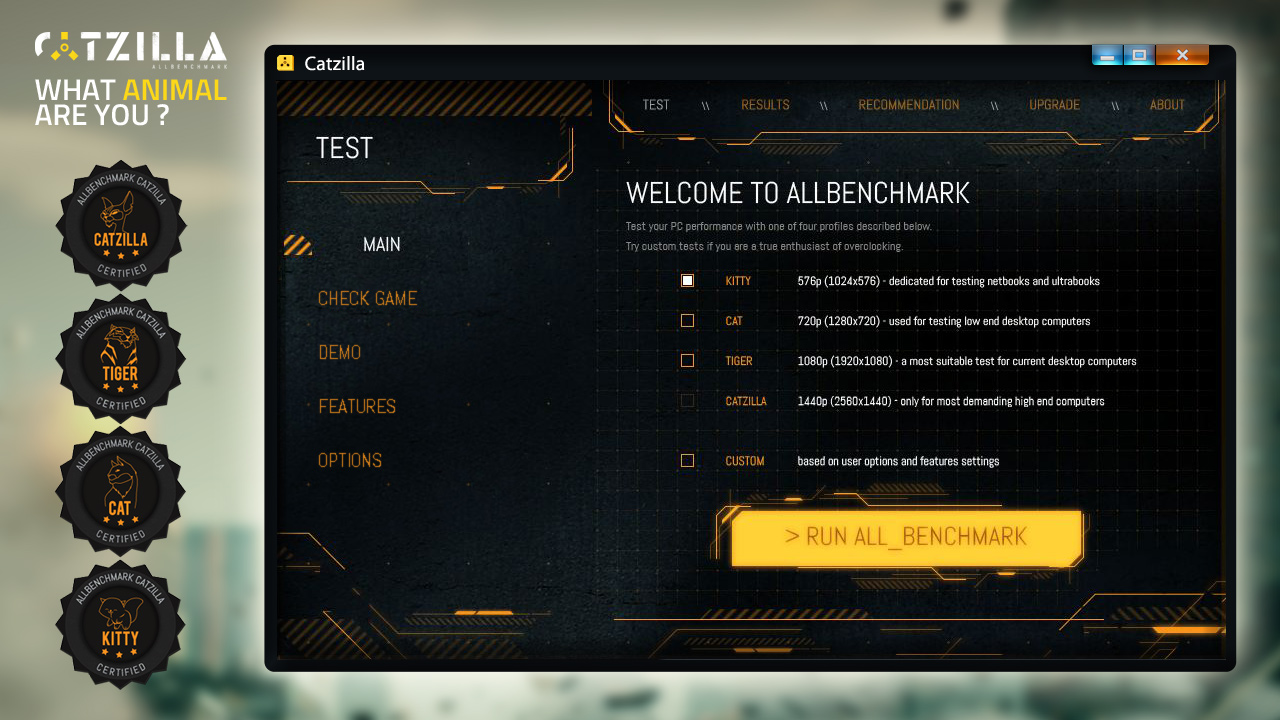
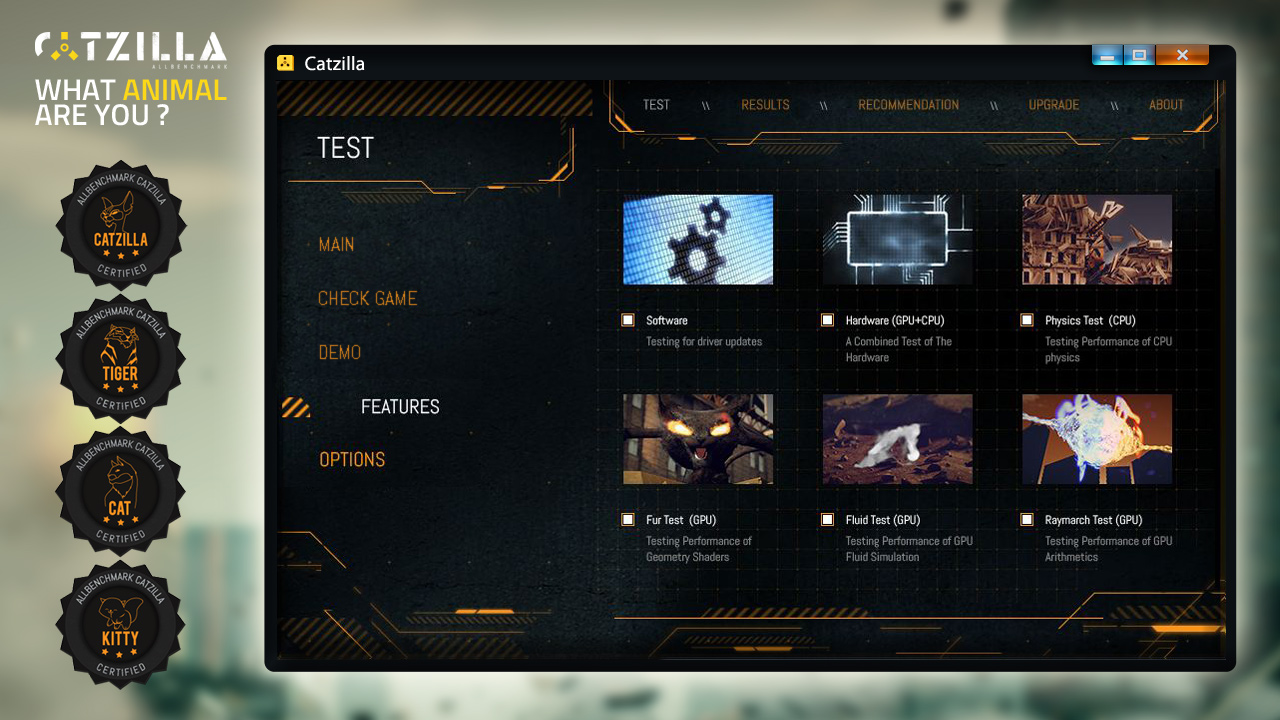
Catzilla - Advanced version - tests and recommendations for gamers.Features: custom tests, recommendations, archiving and comparing historical results. These options are not available in FREE and BASIC versions. Tests are focused to check all computer components simultaneously (not only GPU).
Catzilla 4K - Advanced runs on Mac through CrossOver, a Windows compatibility layer that translates DirectX calls into Metal on Apple Silicon.


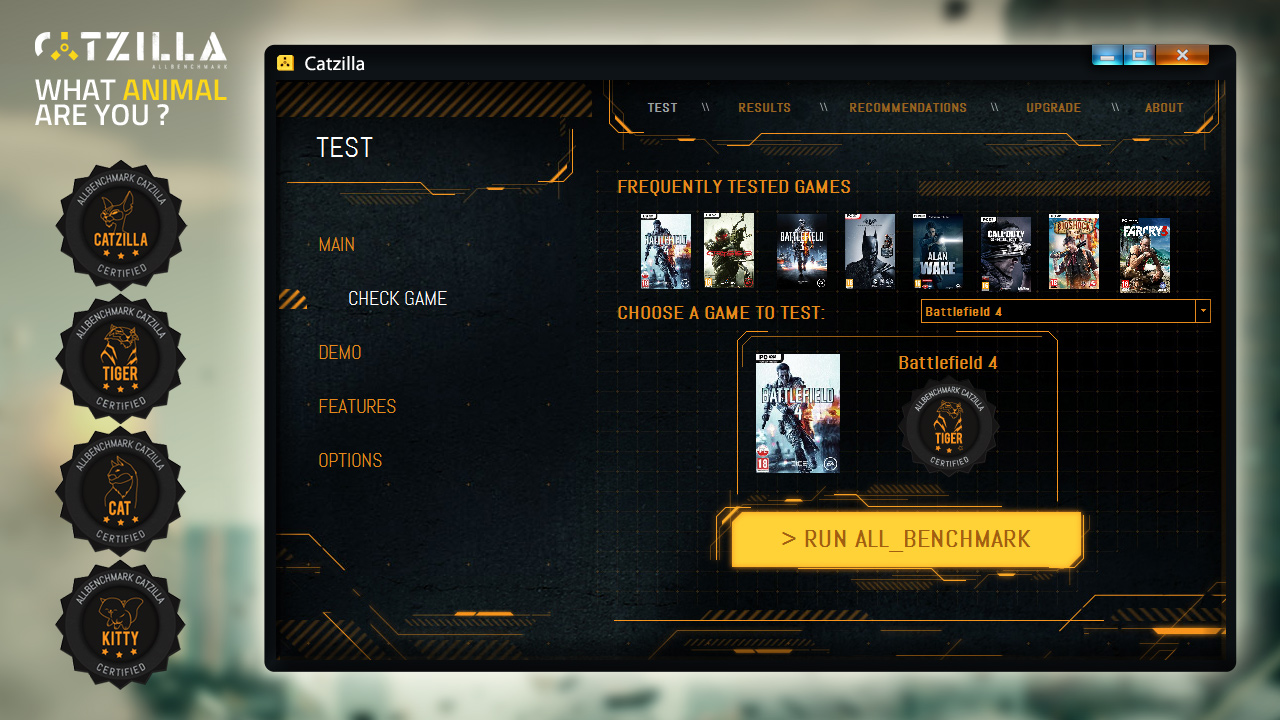
How Catzilla 4K - Advanced runs on your Mac, from our performance model and player reports.
See exactly how Catzilla 4K - Advanced will run on your Mac
Pick your chip and RAM for a personalised estimate.
Catzilla 4K - Advanced runs on Mac through CrossOver, a Windows compatibility layer that translates DirectX calls into Metal on Apple Silicon.
Here are all the options available, ranked by what we recommend first.
One-click local install, official support.
Full Windows 11 ARM inside macOS.
How each supported method stacks up on setup effort, time and runtime overhead.
Live prices compared across trusted PC key sellers — updates every few hours.
Loading per-platform notes…
Idiot-proof walkthroughs for every method.
Running Catzilla 4K - Advanced through CrossOver translates its Windows DirectX calls into Metal on Apple Silicon — no reboot, no Windows license, no virtual machine. Most setup time is spent on first-time bottle configuration and installing the game launcher (Steam, Epic, etc.) inside CrossOver. Once that's done, launching feels close to native. Expect 15–30 minutes of setup on the first run.
Step 1 — Create a bottle
Catzilla 4K - Advanced) and choose Windows 10 64-bit- Graphics: D3DMetal (not DXVK)
- Synchronization: ESync
- High Resolution Mode: Off
Step 2 — Install the game launcher
Step 3 — Install and launch Catzilla 4K - Advanced
Step 4 — If you hit issues
Using Parallels to play Catzilla 4K - Advanced means running a full copy of Windows 11 ARM inside macOS. This is the most "it just works" approach for games that don't behave under CrossOver, and DirectX 11 is hardware-accelerated. You'll need a Windows license and roughly 80 GB of disk space.
For most Mac players the best way to play Catzilla 4K - Advanced on Mac is CrossOver. One-click local install, official support.
| Method | Quality | Difficulty | Cost |
|---|---|---|---|
| CrossOverPick | Good | Medium | $74 one-time / $39/year |
| Parallels | Estimate | Medium | $99/year + Windows licence |
Share what worked for you running Catzilla 4K - Advanced on Mac.
Loading comments…