Parallels
Full Windows 11 ARM inside macOS.
Difficulty: MediumCost: $99/year + Windows licenceEstimate
Action · 2008
Best played through CrossOver on Apple Silicon.
Overall rating: Runs great on Mac · 100% of 2 players say it runs well
Best played through CrossOver on Apple Silicon.
Should run in a Windows 11 ARM virtual machine (Parallels). This is an estimate — not a verified report. Demanding 3D titles may need lower settings.
| Method | Quality | Difficulty | Cost | |
|---|---|---|---|---|
| ParallelsPick | Good | Medium | $99/yr | Get it ↗ |
| Boosteroid | Estimate | Easy | $9.95 /mo | Get it ↗ |
| Xbox Cloud Gaming | Estimate | Easy | $16.99 /mo | Get it ↗ |
| GeForce NOW | Estimate | Easy | Free / $9.99 /mo | Get it ↗ |
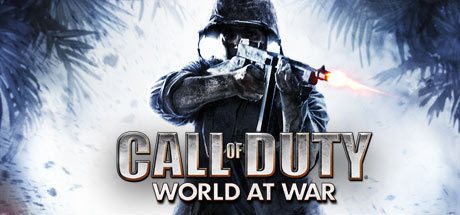
Call of Duty is back, redefining war like you've never experienced before. Building on the Call of Duty 4®: Modern Warfare engine, Call of Duty: World at War immerses players into the most gritty and chaotic WWII combat ever experienced.
A highly playable experience on Apple Silicon; CrossOver provides near-native performance levels, though some multiplayer features may require community patches.
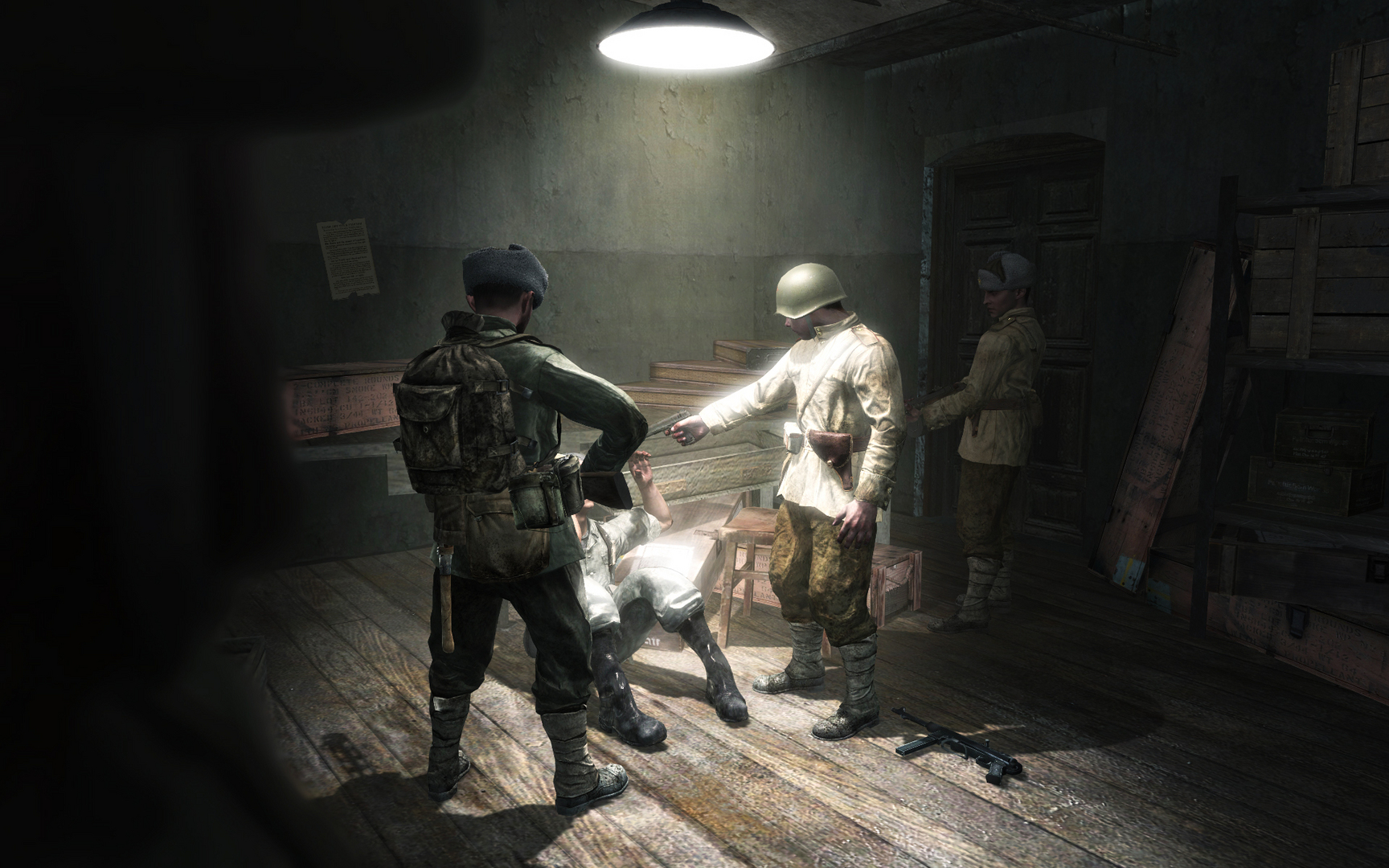
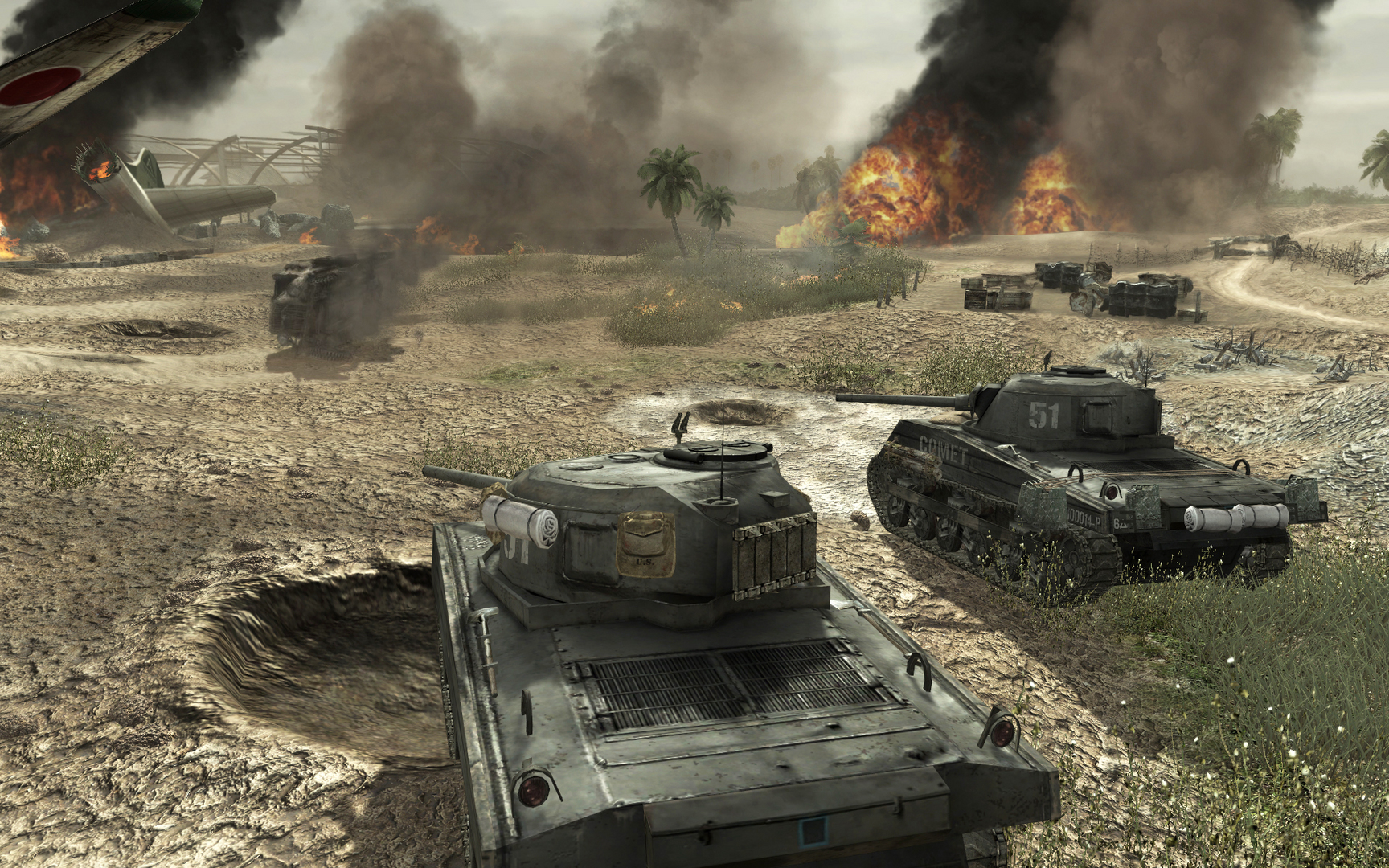

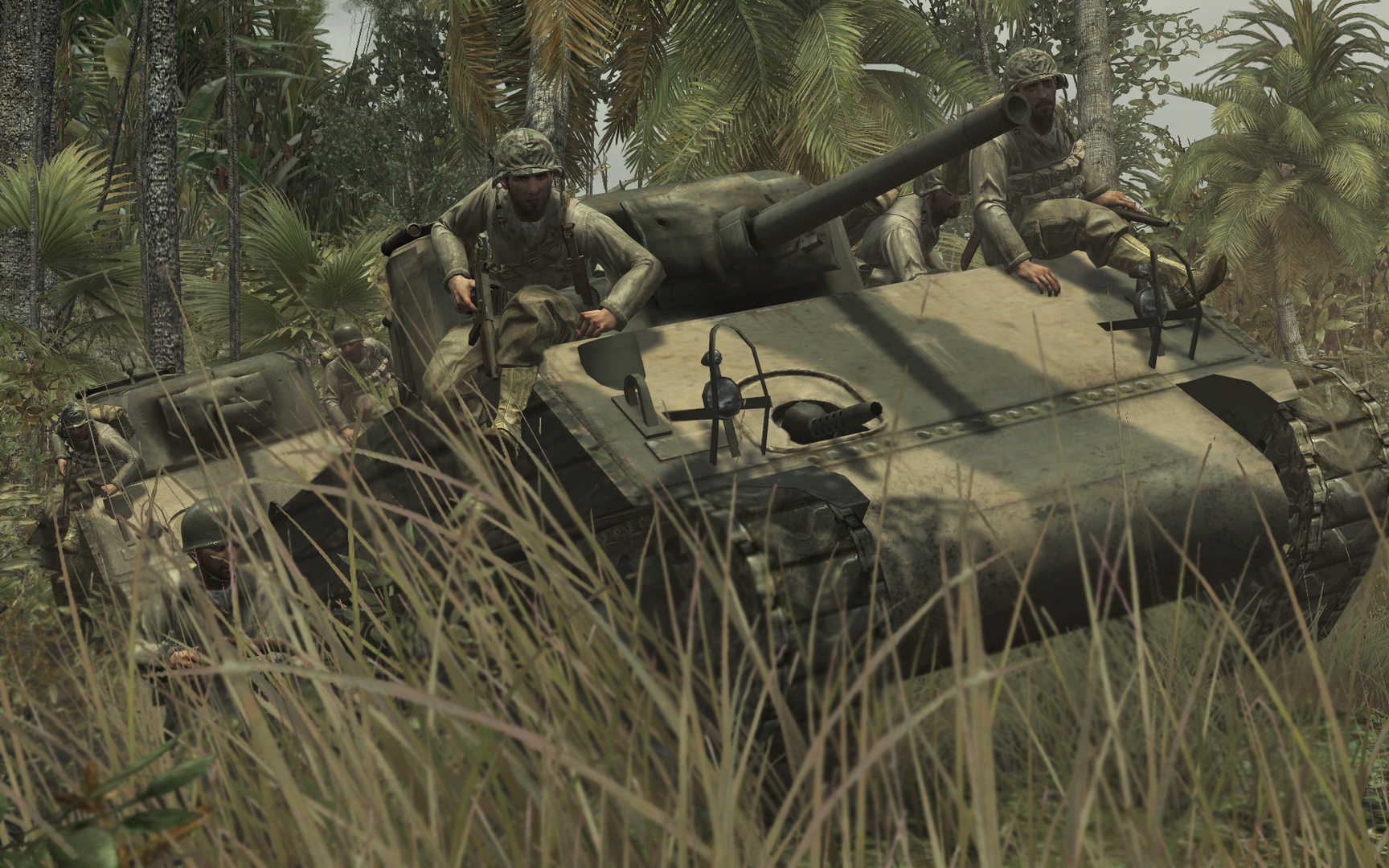
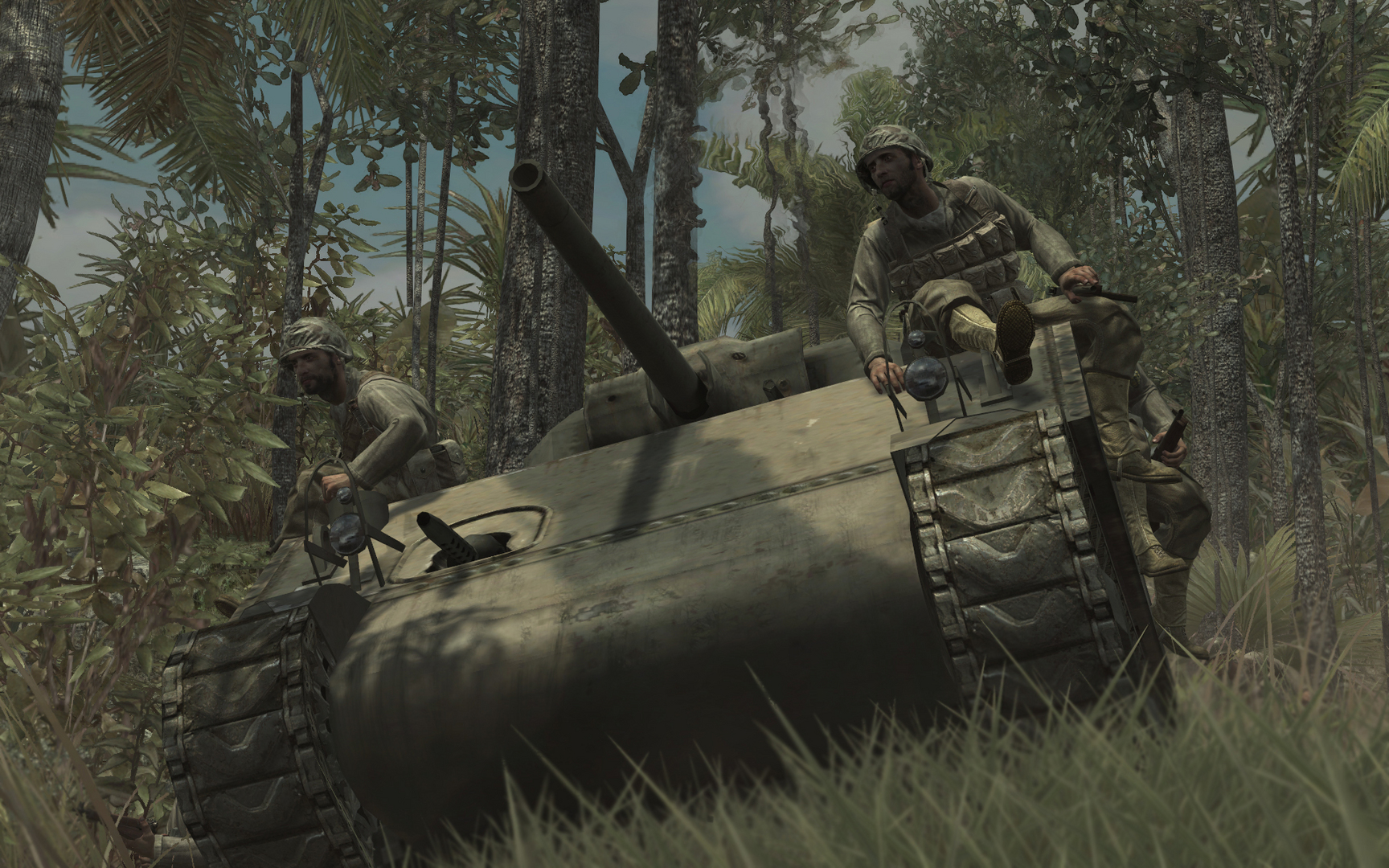
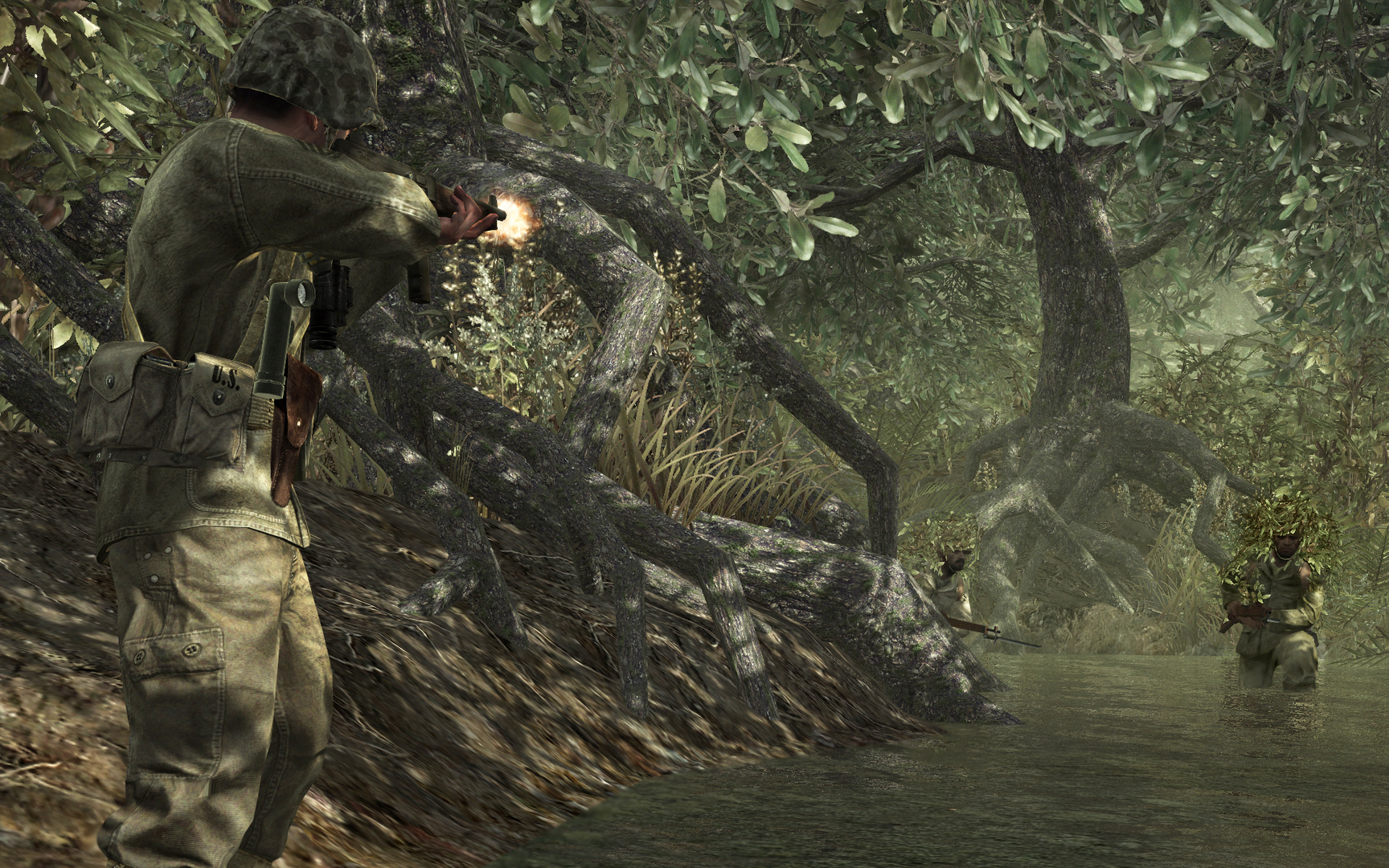
How Call of Duty: World at War runs on your Mac, from our performance model and player reports.
See exactly how Call of Duty: World at War will run on your Mac
Pick your chip and RAM for a personalised estimate.
A highly playable experience on Apple Silicon; CrossOver provides near-native performance levels, though some multiplayer features may require community patches.
Boosteroid and Xbox Cloud Gaming and GeForce NOW are also available for cloud performance on a strong connection.
Full Windows 11 ARM inside macOS.
Needs 25+ Mbps internet, wired ideal.
Needs 25+ Mbps internet, wired ideal.
Needs 25+ Mbps internet, wired ideal.
How each supported method stacks up on setup effort, time and runtime overhead.
Live prices compared across trusted PC key sellers — updates every few hours.
Loading per-platform notes…
Idiot-proof walkthroughs for every method.
Using Parallels to play Call of Duty: World at War means running a full copy of Windows 11 ARM inside macOS. This is the most "it just works" approach for games that don't behave under CrossOver, and DirectX 11 is hardware-accelerated. You'll need a Windows license and roughly 80 GB of disk space.
Streaming Call of Duty: World at War through Boosteroid is the fastest way to start playing on a Mac — there's nothing to install, no Windows VM, no compatibility layer. The game runs on a remote GPU and your Mac just receives the video, which means even a base M1 MacBook Air can play the most demanding AAA titles at high settings. The tradeoff is that you need a stable internet connection (ideally wired or 5GHz Wi-Fi with 25+ Mbps down) and a subscription.
Streaming Call of Duty: World at War through Xbox Cloud Gaming is the fastest way to start playing on a Mac — there's nothing to install, no Windows VM, no compatibility layer. The game runs on a remote GPU and your Mac just receives the video, which means even a base M1 MacBook Air can play the most demanding AAA titles at high settings. The tradeoff is that you need a stable internet connection (ideally wired or 5GHz Wi-Fi with 25+ Mbps down) and a subscription.
Streaming Call of Duty: World at War through GeForce NOW is the fastest way to start playing on a Mac — there's nothing to install, no Windows VM, no compatibility layer. The game runs on a remote GPU and your Mac just receives the video, which means even a base M1 MacBook Air can play the most demanding AAA titles at high settings. The tradeoff is that you need a stable internet connection (ideally wired or 5GHz Wi-Fi with 25+ Mbps down) and a subscription.
For most Mac players the best way to play Call of Duty: World at War on Mac is CrossOver.
| Method | Quality | Difficulty | Cost |
|---|---|---|---|
| Parallels | Estimate | Medium | $99/year + Windows licence |
| Boosteroid | Estimate | Easy | $9.95 / month |
| Xbox Cloud Gaming | Estimate | Easy | Game Pass Ultimate subscription |
| GeForce NOW | Estimate | Easy | Free tier / $9.99+ per month |
Share what worked for you running Call of Duty: World at War on Mac.
Loading comments…